
The Frustrating Shock of a Suddenly Broken Website
You grab your morning coffee, open your laptop to check your site, and boom—a big, ugly "503 Service Unavailable" error slaps you right in the face. Panic sets in fast. Your hosting dashboard flashes a warning saying you are totally out of space, even though you just bought a massive 100GB plan. I have been in this exact spot, and I know exactly why this happens (hint: nobody hacked you).
To my absolute shock, I saw a bright red warning banner telling me that my hosting account was completely full. This made absolutely no sense to me at the time. I was paying for a premium plan that clearly promised me a massive 100GB of storage space. When I checked my actual disk space usage, I had only used a tiny 3GB of my allowed limit.
I felt completely cheated and totally confused by the entire situation. How could my web server possibly be full when I had 97GB of completely empty space left? After spending hours in a panic, reading through confusing technical support forums, I finally discovered the hidden culprit causing all my stress. It was a secret, invisible barrier called an "inode limit."
This exact nightmare happens to thousands of normal website owners every single day. You pay good money for what you think is endless server space, but the hosting companies hide a completely different limit deep in the fine print. When you hit this invisible ceiling, your website completely shuts down without any warning at all.

You cannot upload a new picture, you cannot update your plugins, and you might even stop receiving important emails from your customers. Your online business basically freezes in time. The mental exhaustion of trying to fix a technical problem you do not even understand is incredibly overwhelming. You just want to write your blog posts and run your business in peace, completely free from surprise server crashes.
Decoding the Hidden Language of Web Servers

Wait, Give Me The Short Version!
- Inodes over Gigabytes: Hosting companies care more about the number of files you have (inodes) than the actual size of your files.
- WordPress is a file hoarder: Uploading one image usually creates multiple hidden copies in your media folder.
- Clean your junk: Unused themes, old emails, and expired cache files are the biggest reasons your site crashes.
- Move the heavy stuff: Keep backups and large videos on external cloud drives, not your main web server.
The Big Lie of "Unlimited" Hosting Packages
Almost every major hosting company on the internet loudly advertises "Unlimited SSD Storage" on their pricing pages. As regular buyers, we naturally assume this means we can upload as many pictures, videos, and articles as we want forever. Unfortunately, this marketing promise is often a very clever trick.
Web hosting companies use a completely different metric behind the scenes to control your account. While they might give you unlimited overall gigabytes, they strictly limit the exact number of individual items you can store. This hidden number of items is what they technically call your "inode limit."
If you hit your maximum allowed number of items, the server completely stops working. It does not matter if you have zero gigabytes or fifty gigabytes of free space left. The server simply refuses to accept even one more tiny text file.
What Exactly Is an Inode Anyway?
Let us completely forget about complex server jargon for a moment. An inode is simply a digital index card that points to a specific item on your server. Every single time you create a new item on your hosting account, the server uses exactly one inode to keep track of it.
If you upload a single picture of a cat, that takes up one inode. If you receive one plain text email in your webmail inbox, that is another inode. Even an empty folder sitting on your server takes up exactly one inode.
Think of your web server as a massive, empty warehouse. The storage space (measured in gigabytes) is the total physical room inside the warehouse. The inodes represent the maximum number of cardboard boxes the warehouse manager is willing to let you bring inside.
You might have a gigantic, mostly empty warehouse. However, if the manager says you can only bring in 100,000 boxes, you are stopped at the door once you hit that exact number. It does not matter if your boxes are mostly empty or extremely small. The manager only cares about the total count of the boxes, not their actual weight.
Quick Look: How Fast Do Inodes Add Up?
To give you a clear picture, here is a breakdown of how simple everyday actions eat up your hidden limits:
| What You Do | How Much Disk Space It Takes | How Many Inodes It Costs |
| :--- | :--- | :--- |
| Upload 1 High-Res Photo | 3 MB | 1 Inode |
| WordPress Auto-Generates 5 Thumbnails | 200 KB | 5 Inodes |
| Receive 10 Text Emails | 50 KB | 10 Inodes |
| Install a New Theme (Even if inactive) | 15 MB | 4,000+ Inodes |
Why Hosting Companies Care About File Counts
You might wonder why a hosting provider would care about the number of files if you are not using up their physical hard drive space. The answer comes down to raw computing power and system memory. Every time a visitor clicks on your website, the server has to quickly search through all your folders to find the right page to display.
If you have a few hundred large video files, the server can easily find them and serve them to your visitors. But if you have three million tiny, microscopic text files, the server has to work incredibly hard to scan through all of them. This massive scanning process slows down the entire system for everyone else sharing that server.
Hosting companies place strict inode limits on your account to protect their server's performance. By forcing you to keep your total file count low, they ensure the machine runs smoothly and quickly. It is basically their way of preventing digital hoarders from crashing the entire neighborhood.
How WordPress Secretly Multiplies Your Files
If you use WordPress, you are highly likely to hit an inode limit much faster than regular website owners. WordPress has a completely invisible habit of multiplying your files behind your back. Every single time you upload just one main featured image to your blog, WordPress goes into overdrive.
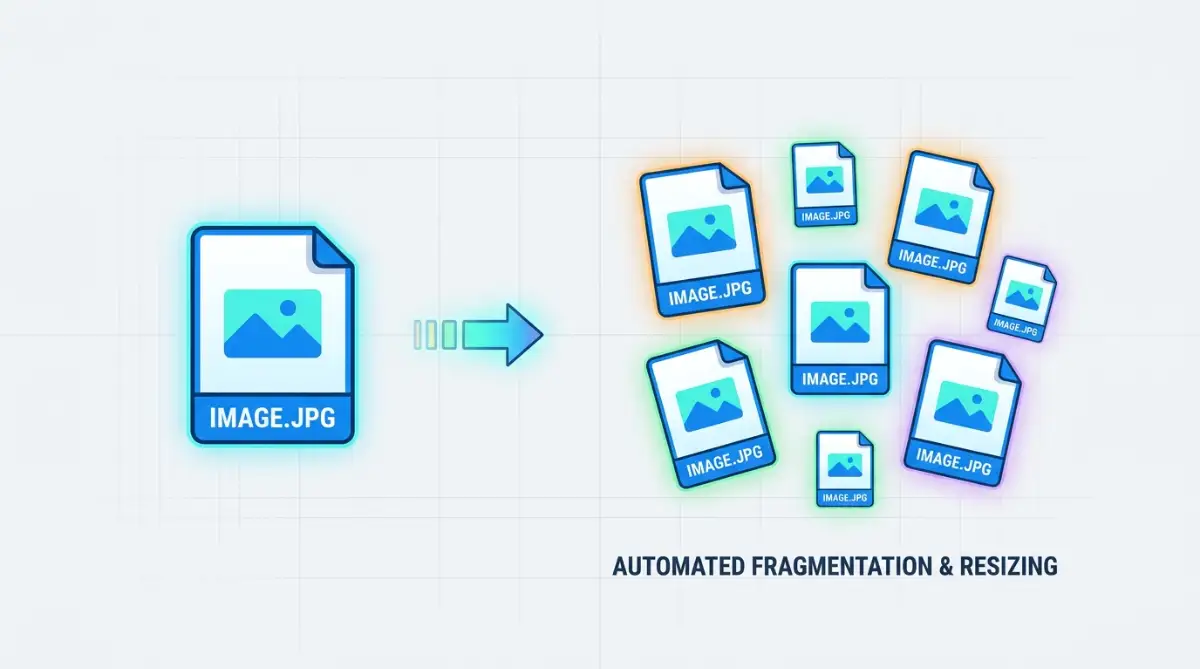
Instead of just saving your one picture, the system automatically creates multiple different sizes of that exact same image. It creates a tiny thumbnail for your sidebar, a medium version for mobile phones, and a large version for desktop screens. Suddenly, your single uploaded photo has turned into seven or eight completely separate files.
Pro Tip: I completely ruined my very first blog by ignoring my old, unused media files. I kept uploading massive photos without ever deleting the bad ones, not realizing WordPress was creating six copies of every single mistake I made! I highly recommend going into your media library every few months and permanently deleting any images you are not actively using.
Watch this incredibly helpful visual breakdown to see exactly how fast hidden server files can multiply behind your back!
The Hidden Danger of Caching Plugins
We all love making our websites load faster for our visitors. To achieve this, most of us install popular optimization and caching plugins. These tools work by saving a static, pre-loaded version of your website so it appears instantly on a visitor's screen.
While caching is incredibly helpful for speed, it is an absolute nightmare for your inode count. To make your site load fast, a caching plugin will often generate thousands of tiny, temporary text files deep inside your server. Every time you update a post, the plugin creates even more files without ever deleting the old ones.
I have personally seen caching plugins generate over 50,000 hidden files in just a few months. If your web host only allows you 100,000 total files, your optimization tool just ate half of your allowance. You must regularly clear your plugin cache to keep your file numbers healthy.
My Real-Life Experience with Caching:
I used to run a free caching plugin that created a separate cache file for every single visitor on mobile. Because I forgot to turn on the "auto-purge" feature, the plugin generated over 65,000 hidden files in just two months. Switching to a better, premium tool that automatically cleans up after itself saved my site from crashing again.
Myth vs Reality: Server Storage Facts
The Myth: If I optimize my images and reduce their file size from 2MB to 100KB, I will drastically reduce my inode usage.
The Reality: Reducing the physical weight of an image helps your gigabyte storage, but it does absolutely nothing for your file count. A massive 5MB video file uses exactly one inode. A tiny 1KB text file also uses exactly one inode. You only save inodes by completely deleting the item, not by making it smaller.
Quick Comparison: Gigabytes vs Inodes
The Silent Killer: Your Unchecked Webmail Accounts
Many website owners completely forget that their custom email addresses are stored directly on their web hosting server. If you use an email like "hello@yourwebsite.com", every single message you send or receive is eating up your allowed file count.
Every tiny spam email that slips into your junk folder equals one inode. Every automated newsletter you never bother reading equals one inode. Over the course of two or three years, an unmanaged email account can easily accumulate tens of thousands of useless files.
If you want to protect your server limits, you need to be ruthless with your inbox. Set your email client to automatically permanently delete the trash and spam folders every single week. Better yet, consider moving your heavy email hosting away from your website server and over to a dedicated service like Google Workspace.
Finding The Trash Left Behind By Unused Themes
When we first start building a website, we love to experiment. We install a flashy new theme, play around with it for a day, and then install a completely different one to compare. We usually just leave the old, rejected themes sitting inactive in our dashboard.
What most beginners do not realize is that a single WordPress theme can contain over five thousand individual files. This includes hundreds of tiny icons, layout scripts, and language translation documents. Even if the theme is completely deactivated and not doing anything, those five thousand files still exist on your server.
The exact same rule applies to old plugins you no longer use. Deactivating a plugin stops it from working, but it does not remove the files from your account. You need to hit the bright red "Delete" button to actually remove those items and win back your precious server space.
Why Server Backups Will Destroy Your Limits
Creating regular backups of your hard work is incredibly smart. However, storing those massive backup files directly inside your own web hosting account is a terrible idea. Many automatic backup plugins simply create a giant zipped folder of your entire site and drop it right back into your server.
Sometimes, these plugins mess up. Instead of creating one large zip file, they might create thousands of fragmented backup chunks. If your backup tool runs every single day and leaves the old copies sitting there, your server will hit its absolute limit in record time.
You should always configure your backup tools to send your saved data to an external, third-party location. You can easily connect these tools to a free Dropbox or Google Drive account. This keeps your website perfectly safe without dumping thousands of unnecessary files onto your main hosting server.
Smart Strategies for Long-Term Server Health
Now that you understand the basic rules of file limits, we can talk about how the professionals keep their servers running perfectly. You do not have to constantly live in fear of hitting that invisible wall if you set up a few smart systems right now. The secret is simply moving the heavy lifting away from your main hosting account.
Move Your Heavy Files to the Cloud
One of the smartest things you can possibly do is stop storing large media files on your own server. Every time you upload a podcast episode, a downloadable PDF, or a heavy video, you are wasting your precious resources. Professional website owners almost never keep these bulky items on their main hosting drive.
Instead, they use specialized external storage buckets designed strictly for holding media. Services like Amazon S3 or Google Cloud Storage are built exactly for this purpose. You can easily upload your heavy files there and simply link them back to your website pages.
By doing this, your main server only has to load the written text of your article. This keeps your file count incredibly low and makes your website load at lightning speed. It is honestly one of the most effective smart ways to automate your daily maintenance tasks without needing a computer science degree.
Let a Delivery Network Handle the Traffic
If you really want to protect your server from crashing, you need to set up a Content Delivery Network immediately. A CDN is basically a massive global network of secondary servers that sit between your website and your visitors. When someone visits your blog, the CDN serves them a saved copy of your site instead of forcing your server to do the work.
This completely stops your server from generating thousands of tiny temporary cache files. The official AWS explanation of content delivery networks clearly shows how this technology reduces the heavy burden on your primary hosting account. Your server gets to relax while the global network handles all the heavy traffic.
Setting up a free tool like Cloudflare takes less than ten minutes and instantly drops your server resource usage. It is the ultimate protective shield for your digital business. You get the benefit of massive speed upgrades while keeping your local file count perfectly safe.
Master the Native Control Panel Tools
Most people log into their hosting account, stare at the confusing dashboard, and immediately click away in fear. However, your hosting control panel actually has built-in tools specifically designed to help you find hidden files. You just need to know exactly which buttons to press.
If you use cPanel, there is a brilliant tool called "Disk Usage" that acts like a digital magnifying glass. You can easily read the official cPanel documentation on tracking server storage to see exactly how this feature works. It scans your entire account and shows you exactly which folders are secretly hoarding the most items.
You will often discover that a random temporary folder you never even knew existed is holding fifty thousand useless text files. Once you spot the problem area using this native tool, you can clean it up with a single click. Taking five minutes a month to check this screen will save you hours of panic later.
Be Ruthless With Your Plugins
We already talked about how extra themes can ruin your storage, but plugins are usually the bigger threat. Every time you read a blog post recommending a shiny new tool, you probably install it immediately. Before you know it, you have forty active plugins running silently in the background of your dashboard.
Each one of those plugins adds hundreds of files to your server count, even if you never actually use the tool. The official WordPress guide on managing active extensions strongly recommends keeping your active list as short as humanly possible. A lean website is a fast, stable website.
Go through your dashboard today and delete any tool you have not used in the last thirty days. Do not just deactivate them, make sure you actually delete the files completely from the server. Your hosting limits will instantly thank you.

The Dangerous Traps That Will Freeze Your Website
Even incredibly smart people fall into massive technical traps when they first start managing a digital business. When you are rushing to build a profitable website, it is easy to ignore the boring technical details hidden in the background. Unfortunately, ignoring these specific pitfalls can completely destroy your online presence overnight.
The Nightmare of the Exploding Error Log
Imagine waking up on the day of a massive product launch, expecting to see hundreds of new sales in your inbox. Instead, you check your website and see a terrifying warning message saying your server has completely crashed. You frantically log into your dashboard and realize your allowed file limit is perfectly fine, but your storage space is maxed out.
This happens because of a silent killer called the error_log file. Whenever a broken plugin or an outdated script struggles to run, your server writes a tiny error message into a hidden text document. If that plugin is broken badly enough, it might write an error message ten times a second.
Over a few weeks, that single plain text document can grow from a few kilobytes to a massive fifty-gigabyte monster. It will literally eat every single inch of available space on your hard drive until the whole system freezes. You have to actively check your main file manager periodically and delete this file if it starts getting too big.
Falling for the "Unlimited" Marketing Trick
We mentioned this earlier, but it is such a dangerous trap that we need to look at exactly how it hurts people. Beginners naturally assume that buying an unlimited package means they never have to worry about server maintenance again. This false sense of security leads to incredibly sloppy file management habits.
They start uploading uncompressed raw photos directly from their camera and leave old backup archives sitting in the main folders. When the hosting company suddenly suspends the account for abuse, the owner feels completely betrayed. Understanding the real truth behind unlimited shared hosting limits is exactly like reading the fine print on a complicated contract.
Letting Your Backup Software Run Wild
I completely destroyed my second blog by setting up an automated backup plugin and completely forgetting about it. The plugin was scheduled to create a full copy of my website every single night at midnight. It seemed like a brilliant, responsible idea at the time.
The massive problem was that the plugin was saving all those backup copies directly into a hidden folder on my server. It never deleted the old copies, so it just kept stacking new ones on top of the pile every single day. Within two months, I had sixty complete copies of my entire website eating up all my allowed inodes.
Always tell your backup software to automatically delete files that are older than fourteen days. More importantly, force the tool to send those files to an outside cloud drive instead of keeping them on the server. Your server is meant to display your website, not act as a messy digital storage locker.
Ignoring Your Domain Security Connections
Sometimes, website owners get so obsessed with clearing out old files that they start messing with things they do not understand. They might accidentally delete hidden system files that connect their registered domain name to their physical server. This tiny mistake instantly breaks the entire website.
When you delete the wrong configuration file, the internet suddenly forgets where your website actually lives. Fixing this mistake often means waiting days for the global servers to recognize your site again. If you ever have to fix this, knowing how to speed up your domain propagation time becomes incredibly helpful.
This is why you should never randomly delete files if you do not know exactly what they do. Just like protecting your domain registration privacy, server management requires a calm, careful approach. Always take a fresh backup before you start a massive server cleaning session.
The Outdated Email Hoarding Trap
Holding onto thousands of read emails is a terrible habit that directly impacts your website's performance. Many people set up their custom business email through their hosting provider and just let the messages pile up for years. They treat their webmail exactly like a free Gmail account.
The major difference is that a massive tech company gives you separate storage for those messages. Your small hosting server lumps your email files and your website files into the exact same limited bucket. Every heavy attachment you receive takes away space from your actual website.
You need to clean your webmail inbox with the same care you use when reading the complex details of a property insurance policy. Better yet, pay a few dollars a month to run your professional email through a dedicated external service. It instantly removes thousands of files from your hosting limit and gives you a much better email experience.
Real Questions Website Owners Ask About Server Storage
Why did my website crash if my disk space says it is mostly empty?
Your server likely hit its hidden inode limit, which tracks the total number of files rather than their physical weight. Even if you have fifty gigabytes of free space left, hitting your maximum allowed file count will instantly freeze your account. You have to delete unnecessary text files, clear your hidden cache folders, and remove old emails to get your site running again.
Can I just buy more inodes from my hosting company?
In most standard shared hosting environments, you cannot simply buy a higher file count limit. The only way to permanently increase your allowance is to completely upgrade your account to a more expensive Virtual Private Server (VPS) or a dedicated machine. However, simply cleaning up your messy folders is usually all it takes to fix the problem for free.
Are hidden cache files actually slowing down my website?
While caching is designed to make your web pages load instantly, holding onto thousands of outdated cache files can actually hurt your server over time. When your storage folders get overly crowded, the server struggles to find the correct data quickly. You should set your optimization tools to automatically clear out the old, expired cache at least once a week.
How do I know which exact folder is causing the storage problem?
You can easily track down the massive folders by logging into your hosting dashboard and clicking on the native "Disk Usage" icon. This simple tool scans your entire server and provides a visual breakdown of exactly where the biggest file collections are hiding. It takes all the guesswork out of the cleaning process and shows you exactly what to delete first.
Your Blueprint for a Stress-Free Hosting Experience
Managing a web server does not have to feel like defusing a complicated digital bomb. You just need to build a few simple, healthy habits to keep your digital workspace incredibly clean. Let us look at a quick, practical checklist you can easily follow every single month.
Do exactly this:
- Log into your server file manager and completely delete any WordPress themes you are not actively using on your live site.
- Check your backup software settings right now and confirm it is sending files to an external cloud drive, not your local server.
- Empty the spam and trash folders in your custom webmail accounts at least twice a month.
- Use a free content delivery network to handle your heavy visitor traffic and stop temporary files from building up.
Absolutely avoid this:
- Do not upload raw, uncompressed photos directly from your phone or camera to your media library.
- Do not ignore warning emails from your hosting provider when they say your account is reaching its limit.
- Do not use complex caching plugins unless you actually know how to clear their temporary storage folders regularly.
I clearly remember how terrified I was the first time my server crashed due to these completely invisible limits. But once I actually learned how simple the native cleanup tools were, I stopped being afraid of the backend of my website. Just take fifteen minutes this weekend to poke around your dashboard, delete some old files, and finally take full control of your digital property!
Disclaimer: The information provided in this article is for educational and informational purposes only and does not constitute professional IT, technical, or legal advice. Server configurations and hosting terms of service vary greatly by provider. Always create a complete backup of your data before modifying or deleting any files on your web server, and consult directly with your hosting support team if you are unsure about your account limits.