The Frustrating Reality of Dropped Connections
You know that exact feeling. You finally sit down to watch a movie after a long day, and the screen just goes black with a spinning circle. Or worse, you are on a video call with your boss, and your face freezes in the most embarrassing way possible. I spent months paying top dollar for 'high-speed' internet, only to pull my hair out every single evening when the connection dropped. Let me show you how I finally fixed my spotty Wi-Fi and got my money's worth, without spending a single dime on new hardware.
I felt my stomach drop and my hands start to sweat as the seconds ticked by. It was the third time that week my home network had completely let me down during an important moment. My router was blinking red, and I just wanted to throw it out the window.
If you work from home or love streaming movies, you probably know this exact feeling. A suddenly dead connection can completely ruin your mood and waste your valuable time. We pay so much money for high-speed internet, yet we still end up staring at buffering screens.
It feels like a massive rip-off when your smart TV cannot even play a short video smoothly. You start blaming your internet provider, calling their support line in pure frustration. But often, the real enemy is hiding right inside your house.
The good news is that you do not need to be a computer genius to fix this. By making a few simple tweaks to your setup, you can get back your peace of mind. Let us break down exactly what is happening in the air around you.
The "Skip The Fluff" Cheat Sheet
- Stop hiding your internet box behind the TV or the couch—it needs to breathe and sit up high on a shelf.
- Put all your smart light bulbs and cheap plugs on the 2.4 GHz band so they stop hogging your main speed.
- Keep your work laptop and smart TV exclusively on the 5 GHz band for buffer-free streaming.
- Log into your router settings and change your channel if you live in an apartment; your neighbors are probably causing your lag.
Decoding the Invisible Waves Around Us
Your wireless router is essentially a mini radio station broadcasting information through your house. Instead of playing music, it sends data to your phones, laptops, and smart speakers. But it does not just send signals randomly; it uses specific channels called frequencies.
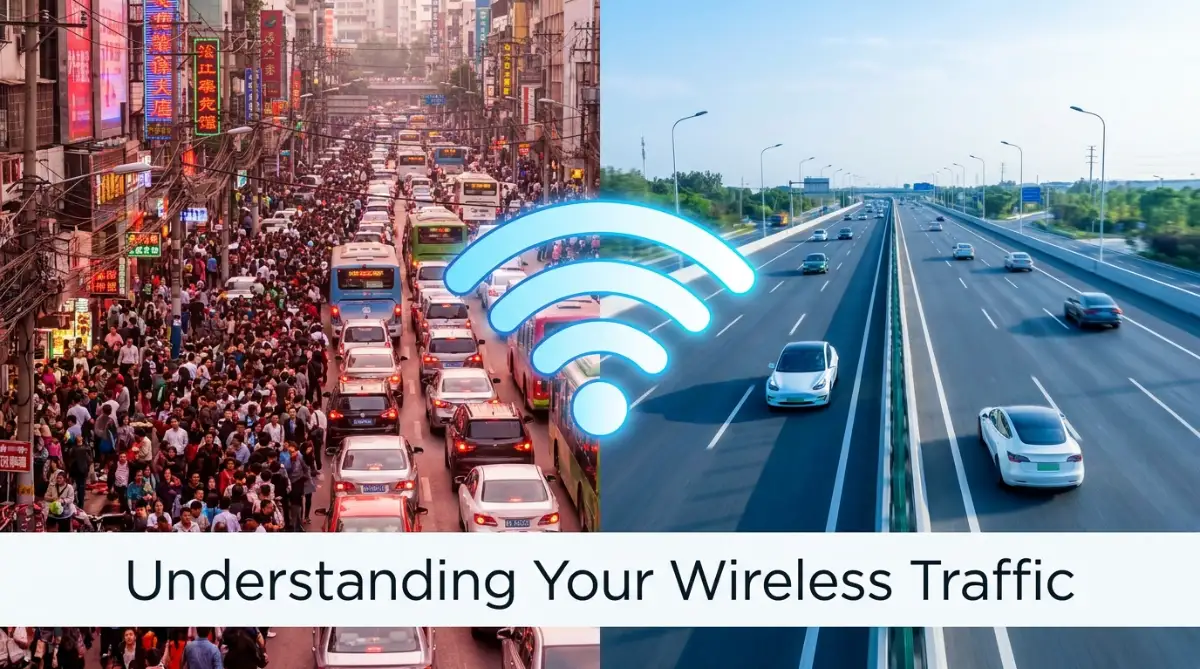
Most modern devices operate on two main highways: the 2.4 Gigahertz band and the 5 Gigahertz band. Think of these bands as two entirely different types of roads leading to the exact same destination. Knowing which road to take makes all the difference in your internet speed.
When you buy a new device, it usually connects to whatever signal is strongest automatically. However, the strongest signal is not always the fastest or the most reliable one. This simple misunderstanding is why so many people experience random disconnects.
Let us look closely at the older, more crowded highway first. The 2.4 range has been around for a very long time, meaning almost every wireless device uses it. Because of this, it can get incredibly jammed up with invisible traffic.
The Pros and Cons of the Slow Lane
The 2.4 band is amazing at one specific thing: traveling long distances. It can easily push through thick walls, wooden doors, and heavy furniture to reach the other side of your house. If you are sitting in your backyard or garage, this is likely the signal keeping you connected.
However, this great range comes with a massive downside. Because it covers so much area, your router is probably picking up signals from your neighbors' houses too. It is like trying to have a conversation in a room where fifty other people are yelling.
This interference causes data packets to get lost or delayed in the air. When your phone has to ask the router to send the data a second time, you experience a lag spike. That tiny delay is what makes your video game stutter or your Zoom call turn robotic.
To make matters worse, other household items share this exact same frequency. Baby monitors, Bluetooth headphones, and even your kitchen microwave can scramble this signal. If your internet dies every time someone heats up last night's pizza, you are definitely on this crowded band.
Upgrading to the High-Speed Expressway
If the previous band is a crowded local street, the 5 Gigahertz band is a massive, multi-lane highway. It is designed to carry a massive amount of data incredibly fast. When you want to stream 4K movies or download large files, this is where you need to be.
Because it is a wider frequency, there is plenty of room for all your modern devices to breathe. Your laptops and smart TVs will not have to fight for space or wait in line. The chances of experiencing random buffering on this band are much, much lower.
Watch this simple visual breakdown to see exactly how walls and furniture block your wireless signals.
But nature has a strict rule when it comes to radio waves. The higher the frequency, the shorter the distance those waves can travel. This super-fast signal struggles greatly when it encounters solid objects.
A single brick wall or a heavy wooden bookcase can easily kill a 5 GHz connection. If you move two rooms away from your hardware, this fast signal might drop to zero. Your phone will then automatically switch back to the slow, crowded band, causing a temporary internet drop.
The "Facetime Walk" Test:
Want to find exactly where your fast internet dies? Next time you are home alone, start a video call on your phone with a friend. Walk slowly from your router into your bedroom, the kitchen, and the bathroom. The exact moment your friend's voice drops out, you have found the invisible wall blocking your 5GHz signal. Put a sticky note on that wall—that is your official dead zone.
My own experience with this was incredibly frustrating. I used to keep my router tucked away inside a heavy wooden TV cabinet because it looked messy on the table. My connection was terrible until I realized that wood acts like a sponge for wireless signals, so moving it to a high, open shelf instantly fixed all my dead zones.
Physical Enemies of Your Internet
People rarely think about the physical layout of their home when setting up their network. We usually just plug the box into the wall exactly where the internet technician left it. Often, this is in a corner of the living room or hidden behind a couch.
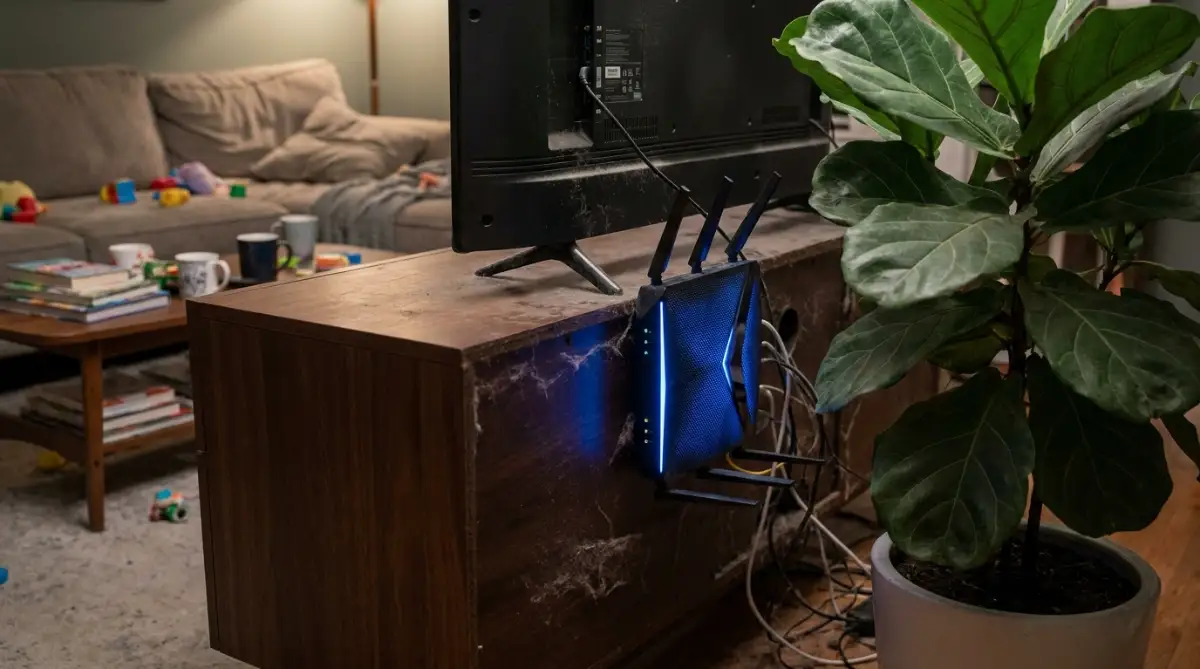
Placing your broadcasting device behind heavy furniture is the worst thing you can do for your coverage. Water is one of the absolute strongest blockers of wireless signals. If you have a large fish tank between your desk and the router, your internet will suffer heavily.
Metal is another huge problem that bounces signals in the wrong directions. Refrigerators, metal filing cabinets, and thick steel doors will completely destroy your coverage map. You want your broadcasting device out in the open, as high up as safely possible.
Imagine your router as a bright light bulb trying to illuminate your entire house. If you put that light bulb inside a closet, the rest of the house stays dark. Placing it centrally on a top shelf allows the invisible waves to flow down and out smoothly.
How Smart Home Gadgets Ruin Your Speed
We love buying smart plugs, wireless security cameras, and voice-controlled lights. But every single one of these gadgets needs a constant connection to your main hub to function. Over time, we end up connecting thirty or forty different items to a single network.
Most of these small, cheap smart devices only use the older 2.4 highway. They do not need much speed to turn on a light bulb, but they constantly chatter in the background. This constant background noise slowly chokes your network, leaving less room for your important work laptop.
When your main hub gets overwhelmed by all this chatter, it starts dropping connections to protect itself. It simply cannot handle the processing power required to listen to fifty devices at once. This is why a perfectly good internet package suddenly feels incredibly sluggish after a few months.
To fix this, you need to manage your devices like a traffic cop. Move every high-performance item, like gaming consoles and smart TVs, onto the 5 GHz band. Leave the older, crowded lane exclusively for your minor smart home accessories.
Myth vs Reality: Home Networking
There is a lot of bad advice out there about fixing internet problems. Let us clear up some common misunderstandings so you can focus on real solutions.
- Myth: Buying a router with more antennas magically guarantees faster speeds.
- Reality: Antennas help direct the signal, but they cannot fix heavy interference from your neighbors.
- Myth: Restarting your router every single day keeps it running faster.
- Reality: Modern hardware is designed to run continuously; you only need to restart if things freeze.
- Myth: You must pay your internet provider for a faster plan to stop buffering.
- Reality: Fixing your internal home setup often solves the problem without spending an extra dime.
Understanding these simple truths can save you a lot of money and frustration. You do not always need expensive new hardware to get a smooth digital experience.
Taking Control of Your Channels
Even if you separate your devices perfectly, you might still face interference from nearby homes. Both frequency bands are divided into smaller lanes called channels. If you and your neighbor are using the exact same channel, your routers will fight each other.
Most standard hubs are set to "Auto," meaning they try to find the best lane by themselves. Unfortunately, they are not always very smart and often pick the most congested option available. You can actually use a free analyzer app on your phone to see which lanes your neighbors are using.
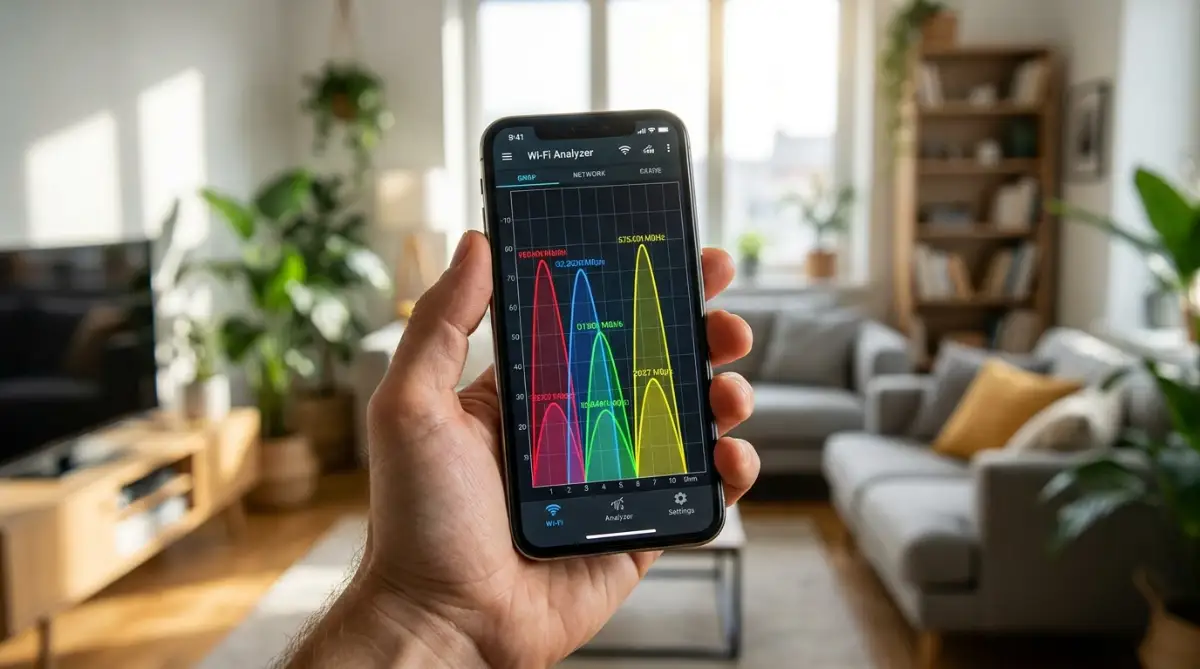
Once you see the empty lanes on the app, you can log into your network settings. Changing your broadcast channel to an empty lane is like taking a private bypass road during rush hour. Channels 1, 6, and 11 are usually the best choices for the crowded 2.4 band because they do not overlap.
By making this one tiny adjustment, you can instantly cut out the invisible noise. Your videos will load instantly, and your online meetings will finally stop freezing mid-sentence. It takes about five minutes to do, but the benefits will last for months.
The Introduction of the 6 Gigahertz Era
Technology is always moving forward to solve these heavy congestion problems. Recently, a brand new highway was opened up for consumer devices called the 6 Gigahertz band. This is often marketed under the name Wi-Fi 6E on newer electronic boxes.
This new frequency is incredibly wide and currently completely empty in most neighborhoods. It offers speeds that rival plugging a physical cable directly into your computer. Because very few people own devices that can access this road, you will face zero traffic.
However, this extreme speed comes with even tighter distance limitations. It struggles even more than the previous generation to pass through simple drywall. You basically need to be in the same room as the broadcasting device to get the full benefit.
Right now, upgrading to this brand-new tech is quite expensive for the average user. For most families, properly organizing the standard dual-band system is more than enough for daily needs. Keep this new technology in mind for the future when your current hardware eventually breaks down.
Simple Habits for a Stable Connection
Maintaining a strong home network does not require daily maintenance. Just keep your broadcasting box clean, dust-free, and out of direct sunlight so it stays cool. Electronics that overheat will naturally slow down their processing power to protect their internal parts.
Make it a habit to check connected devices once every few months through your admin panel. Sometimes old phones or forgotten tablets stay connected and quietly drain your bandwidth with background updates. Kicking off unknown or unused gadgets frees up valuable processing power for your main computer.
If your house is very large or has multiple floors, a single broadcasting box will never be enough. Instead of buying cheap, unreliable range extenders, look into a proper mesh system. A mesh network uses multiple smart hubs that talk to each other, creating a massive, unbreakable blanket of coverage.
They intelligently hand off your phone's connection from one hub to another as you walk around the house. You will never experience a dropped video call while walking from the kitchen to the bedroom again. It is the ultimate investment for anyone who relies heavily on their home internet for a living.
I know dealing with technology can feel overwhelming when things go wrong. But by visualizing your network as physical traffic, the solutions become surprisingly obvious. Take a look at where your internet box is sitting right now, and see if you can give it a better home today.
Taking Your Home Network to the Next Level
Once you understand the basic highways of your wireless network, it is time to look under the hood. There are some incredibly powerful settings hidden inside your broadcasting box that most people never touch. Learning to adjust these features is the absolute best way of building a dependable remote work setup for your daily life. You do not need a computer science degree to master these secrets.
One of the best-kept secrets in home networking is a feature called Quality of Service, or QoS for short. Think of QoS as a highly trained traffic cop standing in the middle of your digital highway. When everyone in your house is online at the exact same time, things get chaotic very fast. Your teenager might be downloading a massive video game update while you are trying to present a live sales pitch.
Without this traffic cop, your router treats the video game update and your professional video call equally. This is exactly why your voice suddenly sounds robotic or your camera feed freezes entirely. By turning on Quality of Service in your admin panel, you can tell the traffic cop who gets VIP treatment. You can literally force the system to always prioritize your work laptop over any entertainment devices.
Another amazing trick is changing your Domain Name System, widely known as DNS. Your DNS is basically the master phonebook of the internet. When you type a website name into your browser, your computer has to look up the physical physical address of that site. Most internet service providers use their own default phonebooks, which are notoriously slow and poorly maintained.
By logging into your settings, you can switch this phonebook to a faster, public option like Google or Cloudflare. This tiny change means your web pages will begin loading almost instantly when you hit enter. If you want to understand the deep mechanics behind this, you can read how domain name systems actually route internet traffic from trusted global tech organizations. It is a completely free upgrade that immediately makes browsing feel significantly snappier.
We also need to talk about Channel Width, which is completely different from the channel numbers we discussed earlier. If changing your channel is like picking a different road, changing your channel width is like adding extra lanes to that road. Inside your settings, you will usually see options for 20, 40, or 80 Megahertz widths. Wider lanes allow more data to pass through at once, making your top speeds much faster.
However, there is a catch that catches many people off guard. Wider lanes also pick up a lot more interference from your neighbors, acting like a giant net for digital noise. If you live in a densely packed apartment building, keeping your 2.4 band on a narrow 20 Megahertz width is usually much safer. It might seem counterintuitive to choose a narrower lane, but stability is always better than unpredictable speed.
My No-Nonsense Jargon Translator:
- ISP: The company you pay too much money to every month.
- 2.4 GHz: The slow, bumpy country road that goes really far.
- 5 GHz: The super-fast sports car track that hits a brick wall and stops.
- QoS (Quality of Service): The bouncer at the club making sure your work laptop gets in before your kid's PlayStation.
Finally, you must get into the habit of manually checking for Firmware Updates. Think of your router as a small computer that runs its own specialized operating system. Just like your smartphone needs regular software updates to fix bugs, your internet box needs them too. Manufacturers regularly release patches that fix weird dropping issues and plug dangerous security holes.
Most older models will never update themselves automatically, leaving you stuck with outdated, buggy software for years. You have to log into your admin panel through your web browser and click the update button yourself. Taking the time to do this is just like automating repetitive daily routines in your work life. It takes two minutes, but it prevents massive headaches and random disconnects down the road.

The Hidden Traps Wrecking Your Wireless Experience
Even if you configure all the settings perfectly, you can still ruin everything with a few bad physical choices. I see people making the exact same placement mistakes over and over again, completely destroying their expensive internet plans. The most common trap is what I call the "Hidden Box Syndrome." We all know that internet equipment is generally ugly, with blinking lights and weird antennas sticking out.
Because it looks like an ugly piece of plastic, people constantly hide their equipment inside wooden TV cabinets or behind heavy books. Wood, glass, and especially metal act like massive brick walls for radio frequencies. If you lock your broadcasting device inside a drawer, you are physically suffocating the signal before it even leaves the room. If you want to dive deeper into the science, you can check scientific studies on radio frequency attenuation to see exactly how materials block waves.
Another massive mistake is placing your equipment directly on the floor or kicking it under a desk. Antennas are designed to project their invisible waves outward and slightly downward to cover your living space. If your box is sitting on the floor, half of your expensive signal is being sent directly into the dirt or the basement ceiling. Your network hub needs to be placed on a high shelf, at least at eye level, to properly shower your room with data.
People also frequently put their networking gear right next to the kitchen, which is a terrible idea. Your microwave operates on the exact same 2.4 frequency as your older smart devices. Every time you heat up a bowl of soup, the microwave leaks a tiny amount of invisible noise into the air. This sudden burst of interference will instantly knock your smart TV offline or drop your phone connection entirely.
Relying on Outdated Hardware
Many of us are guilty of keeping the default combination box that the internet company gave us five years ago. These cheap, plastic boxes are designed to save the company money, not to give you a premium experience. They usually have incredibly weak internal antennas and terrible processing power. Expecting a free, five-year-old box to handle twenty modern smart home gadgets is completely unrealistic.
When your network constantly drops because of bad hardware, it takes a serious toll on your daily mood. Constantly fighting with your screens causes unnecessary arguments with family members over who is hogging the bandwidth. Protecting your home environment is just as important as protecting your mental well-being while working online. You cannot be productive or happy if you are constantly stressed about your connection failing.
Another dangerous pitfall is totally ignoring the security side of your home network. Many people leave the default admin password as "admin" or "password" because they think no one will bother hacking them. This is like leaving your front door wide open in a busy neighborhood. Strangers can easily log into your system, steal your bandwidth, and slow your speeds to an absolute crawl.
Hackers can also exploit outdated networking equipment to access your personal computers and smart cameras. These hardware flaws are very similar to fixing advanced software vulnerabilities in large businesses. Taking five minutes to create a strong, unique password for both your Wi-Fi name and your admin panel is non-negotiable.
Finally, do not make the mistake of using the exact same name for both of your frequency bands. Many modern systems combine the 2.4 and 5 lanes under one single network name, claiming it makes things easier. In reality, it forces your phone to constantly guess which lane is better, causing random drops as you walk around the house. You should separate them in your settings, naming one "Home" and the other "Home_5G," so you have total control over what connects where.
Your Action Plan for Unbreakable Connectivity
We have covered a lot of ground today, from understanding invisible radio highways to mastering your internal settings. It might feel like a lot of technical information at first, but taking control of your home network is incredibly empowering. You do not have to settle for a frustrating, buffering digital life anymore. By applying just a few of these physical and digital changes, you will see an immediate, massive improvement.
Think of your internet setup just like you think about taking care of your device batteries or cleaning your computer screen. A little bit of mindful maintenance goes a very long way in keeping things running smoothly. Start with the easiest step first: go find your router right now and make sure it is sitting out in the open. Dust it off, lift it up high, and move it away from any solid metal objects or fish tanks.
Next, grab your smartphone and download a free analyzer app to check out the traffic in your neighborhood. You will be amazed to see exactly how crowded your local area is and where the empty lanes are waiting. Logging into your admin panel might seem scary at first, but it is just a simple menu with helpful options. Follow the basic guidelines on wireless communication interference provided by experts, and you will navigate those settings easily.
I used to absolutely hate my home network, constantly unplugging the power cord in total frustration during important meetings. But once I separated my bands and moved my equipment to a top shelf in the hallway, everything changed overnight. Now, I can comfortably stream movies, take video calls, and relax without ever worrying about a sudden drop. You have the exact same power to fix your home setup today, so take a deep breath and go make those simple changes.
Answers to Your Biggest Networking Questions
Why does my connection always drop at night?
During the evening hours, everyone in your neighborhood comes home and starts streaming movies or playing games at the same time. This massive surge in digital traffic heavily congests the shared channels around your house. Switching your primary devices to the less crowded 5 Gigahertz band usually solves this exact evening problem.
Can I use both frequency bands at the exact same time?
Yes, your broadcasting box is designed to output both signals simultaneously without any issues. However, a single device like your phone can only connect to one specific band at a time. The trick is to balance your household by putting heavy tasks on the fast lane and smart home gadgets on the slower lane.
Will buying a brand-new modem fix my wireless issues?
A modem just brings the internet into your house, while the router actually creates the wireless signal in the air. If you are experiencing poor wireless range or frequent disconnects, upgrading your router or buying a mesh system is what you actually need. Changing the modem will only help if your internet provider directly tells you the incoming wire is broken.
How do I know if someone is stealing my bandwidth?
You can log into your network admin panel through a web browser and look for a section called "Connected Devices." This will show you a list of every single phone, TV, and computer currently using your data. If you see strange device names you do not recognize, immediately change your main network password to kick them out.
Do thick curtains or window blinds block my signal?
Normal fabric curtains do not block radio waves very much, so your signal will pass through them easily. However, if your blinds are made of solid aluminum or heavy metal, they will absolutely bounce the waves back into the room. Keep your broadcasting equipment far away from large metal objects, including decorative metallic window covers.
Disclaimer: The information provided in this article is for educational and informational purposes only. Network configurations and hardware settings can vary greatly depending on the manufacturer and internet service provider. Always consult your equipment's official manual or contact a professional technician if you are unsure about modifying your network settings. We are not responsible for any changes made to your personal devices or any resulting service interruptions.