
The Terrifying Moment My Laptop Almost Melted
My screen froze, a loud buzz blasted through the speakers, and my laptop shut down entirely. It was burning hot to the touch. If you are reading this, you probably just experienced that same mini-heart attack. Nothing drops your stomach quite like thinking you just fried your primary work machine. But do not panic yet—let's fix your overheating computer right now before it permanently cooks your expensive components.
I sat there staring at a dark screen, my heart pounding in my chest, terrified that I had just permanently destroyed my expensive machine. Have you ever experienced that sinking feeling in your stomach? It is absolutely terrifying when the tool you rely on to make a living decides to quit on you because of extreme heat.
This thermal nightmare does not just ruin a single workday. It completely destroys your mental peace and leaves you constantly anxious. You start walking on eggshells around your own computer, afraid to open too many browser tabs or run heavy software.
When a machine runs extremely hot on a daily basis, the internal components slowly degrade. The battery life drops off a cliff, the processor slows itself down to survive, and your once-snappy machine feels incredibly sluggish. This is exactly what happens when we ignore thermal warnings and push our machines beyond their safe operating limits.
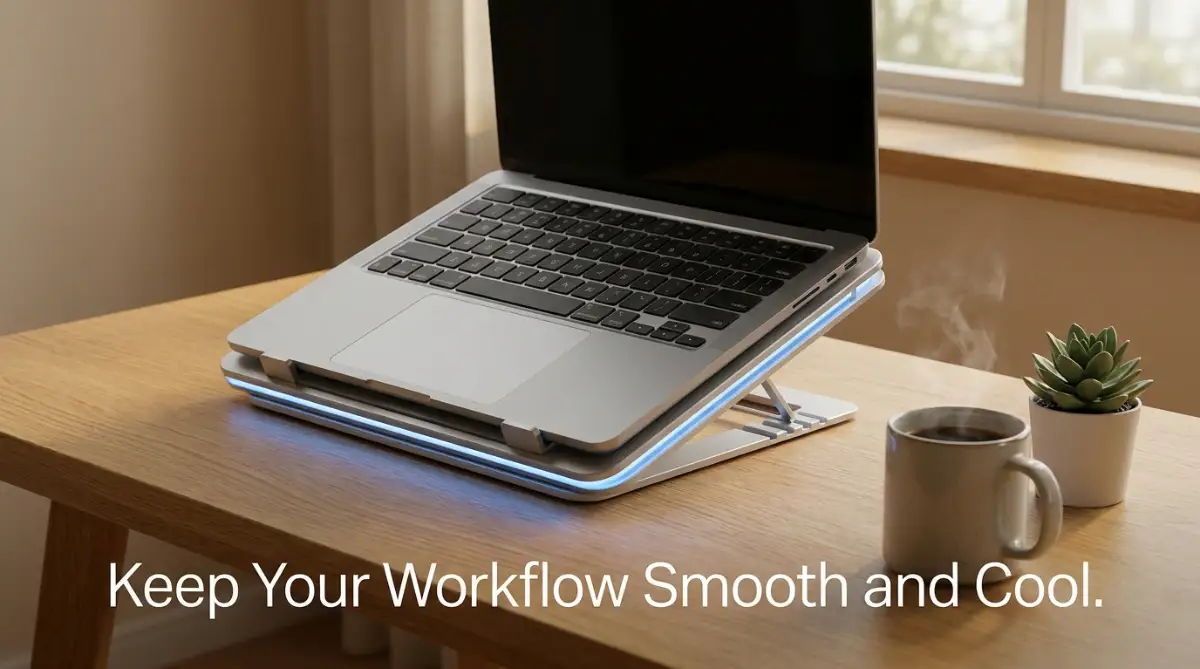 Understanding Why Your Machine Turns Into a Heater
Before we can actually solve this thermal nightmare, we need to understand exactly what is happening inside that thin metal or plastic casing. Your laptop is basically a very compact, incredibly powerful brain. When you run demanding software, this brain works extremely hard.
Think of it like running a marathon. When you sprint, your body generates massive amounts of heat, and you start sweating to cool down. Your computer processor does the exact same thing when rendering a 3D model or running complex data simulations.
However, unlike a desktop computer that has a massive case with lots of empty space for air to move around, a laptop is completely packed tightly. The graphics processing unit, the main processor, and the battery are all squeezed together in a tiny space. When these parts process millions of calculations per second, the electrical friction creates intense heat.
If this heat cannot escape quickly enough, the internal temperature spikes dangerously high. To protect itself from literally catching fire, your system automatically slows down its own performance. This protective feature is called thermal throttling, and it is the exact reason why your screen freezes and your workflow becomes incredibly laggy.
The Invisible Wall Blocking Your Exhaust Vents
Most people do not realize that their everyday habits are actually choking their machines. Your device relies on a very specific pathway to breathe in cool air and push out the hot air. Take a close look at the bottom and the sides of your machine right now.
Do you see those tiny little grills and slots? Those are the breathing pathways for your system fans. When you place your device on a soft surface, you are instantly blocking these pathways.
Pro Tip: I used to always edit videos while lying in bed, resting my computer directly on my soft comforter. I had no idea the thick blanket was completely sealing off the intake vents, trapping all the boiling hot air inside until my battery almost swelled up. Now, I always keep a hard book or a dedicated tray nearby if I want to work comfortably from the couch.
Bed sheets, pillows, and even your own lap act as highly effective insulators. They trap the exhaust heat and bounce it directly back into the bottom of the chassis. It is essentially the same as forcing someone to breathe through a thick winter scarf while running on a treadmill.
Immediate Physical Adjustments for Better Airflow
You do not need to be a computer engineer to start lowering your temperatures right this second. The absolute easiest way to drop your system heat by a few degrees is to simply elevate the back end of the machine. By lifting the back just one or two inches off your desk, you instantly create a massive pocket of fresh air underneath.
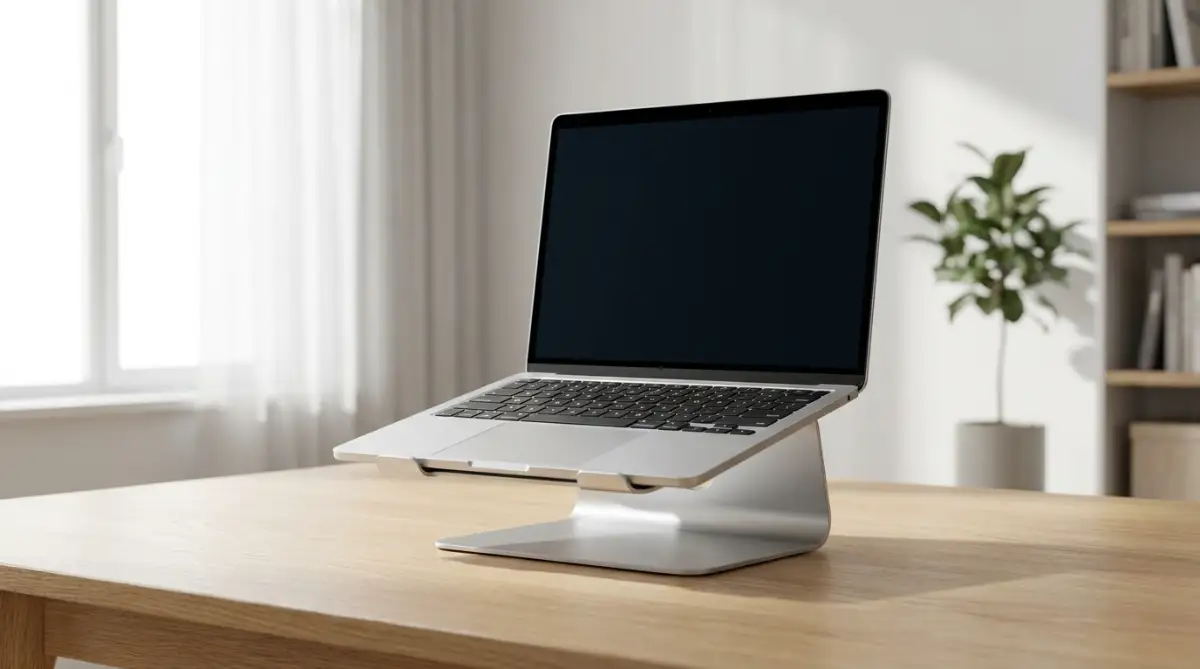
You can use a dedicated ergonomic stand, or honestly, even two small bottle caps placed under the back rubber feet will do the trick. This tiny gap allows the intake fans to pull in completely fresh, room-temperature air instead of recycling the stagnant hot air trapped against the desk surface.
Selecting the Right Resting Surface
The material of the desk you work on also plays a massive role in thermal management. Hard, cool surfaces like glass, thick polished wood, or metal are excellent because they naturally dissipate heat. If you are using a leather desk mat or a thick fabric mousepad that covers your entire working area, you might be accidentally trapping heat.
Try moving the machine directly onto the bare, hard surface of your table during your heaviest rendering sessions. You will notice the fans do not have to spin quite as aggressively.
[Bold Intro text for Video:] If you are nervous about cleaning the tiny fans inside your machine, watching a visual demonstration makes the process incredibly simple and completely stress-free. Check out this quick and safe method to clear out years of trapped dust without damaging any fragile internal parts.
The Truth About External Cooling Pads
Many people immediately jump to getting external cooling accessories when their devices get hot. However, not all accessories are created equal, and some might actually disrupt your natural airflow. Let us look at a simple comparison of common resting solutions.
Quick Cooling Pad Buyer’s Checklist:
Don't just buy the first cooling pad you see online. Make sure it checks these boxes:
- Vent Alignment: Flip your laptop over. Do the fans on the pad line up directly with the open grills on your laptop bottom? If not, skip it.
- RPM Speed: Look for pads with fans that spin at least 1500 RPM. Anything lower is basically just a gentle breeze.
- Sealed Edges: The best pads have a foam seal around the edge. This forces the cold air up into your laptop instead of letting it escape out the sides.
If you decide to use an active cooling pad, you must make sure its fans align perfectly with the intake vents on the bottom of your specific model. If the external pad blows air into a solid plastic section of your bottom cover, it will not help much. The goal is to force cold air directly into the existing airflow channels, giving your internal cooling system a massive helping hand.
Busting Common Thermal Management Myths
There is a lot of terrible advice floating around the internet about keeping electronics cold. Let us clear up some of this misinformation right now.
Myth: Pointing a massive room fan directly at your keyboard will solve the problem.
Reality: While this might cool down your hands, it does absolutely nothing for the internal processor. In fact, it might just blow room dust straight into your keyboard switches.
Myth: Putting an ice pack near the exhaust vents will quickly bring temperatures down.
Reality: Please never do this. The extreme temperature difference will cause condensation to form inside the chassis. Those tiny water droplets will instantly short-circuit your motherboard and destroy the entire system.
Myth: Blowing really hard into the side vents with your mouth will clean the dust.
Reality: Human breath contains a lot of moisture. Plus, blowing air inward just forces the trapped dust bunnies deeper into the delicate fan blades, causing them to jam completely.
Smart Software Tweaks to Lighten the Load
Physical airflow is only half of the equation when it comes to thermal management. The other half involves controlling exactly what your software is demanding from your hardware. Most people have no idea how many invisible programs are silently draining their system resources in the background.
When you are preparing to run an intense processing task, like exporting a heavy design file, you need to clear the runway first. Open up your system task manager and look at the background processes. You will likely find auto-update managers, cloud syncing apps, and chat applications quietly using up precious processing power.
Taming the Turbo Boost Feature
Modern processors have a built-in feature that automatically overclocks their speed when they detect a heavy workload. This sounds great for performance, but it generates an insane amount of sudden heat. Sometimes, this aggressive speed boost is completely unnecessary for what you are trying to achieve.
You can actually go into your advanced power plan settings and change your maximum processor state. By default, it is always set to one hundred percent. If you lower it to just ninety-eight or ninety-nine percent, it prevents the processor from aggressively boosting its speed.
This tiny little change barely impacts your actual working speed, but it can literally drop your internal temperatures by ten to fifteen degrees instantly. Your machine will run significantly quieter, and the heat output will remain extremely stable throughout the entire heavy task.
Limiting Background Syncing
Cloud storage applications are notorious for causing unexpected heat spikes. Imagine you are editing large video files, and your cloud drive is desperately trying to upload those massive gigabytes of data in real time. Your network card works overtime, your hard drive is constantly spinning, and your processor is managing the transfer.
Always pause your cloud syncing services before starting a heavy rendering or processing session. Tell the software to stop syncing until you manually resume it. This frees up an enormous amount of system memory and significantly reduces the thermal strain on your internal components.
Strategic Power and Battery Management
How you charge your machine while working intensely has a huge impact on thermal output. Charging a battery generates heat. Running heavy processing tasks also generates heat.
If you are doing both of these things at the exact same time, you are creating a perfect storm of thermal stress inside the chassis. Whenever possible, make sure your battery is fully charged before you begin your heaviest workloads. Once it is fully charged, keep it plugged into the wall.
Most modern premium machines have smart power delivery systems. Once the battery hits maximum capacity, the system stops sending power to the battery and pulls electricity directly from the wall socket. This completely bypasses the battery, keeping it cool and saving its long-term health while your processor handles the heavy lifting.
The Danger of Direct Sunlight and Room Temperatures
We often focus so much on the device itself that we completely ignore our working environment. The ambient temperature of your room sets the baseline for how cool your machine can possibly get. If your room is sweltering hot, your computer fans are just sucking in hot air and trying to cool a hot processor with it.
I once tried working on a complex spreadsheet outside on my patio during a sunny afternoon. Within twenty minutes, the direct sunlight hitting the dark metal chassis caused the entire system to overheat and shut down completely. Always keep your workspace shaded and well-ventilated.
If you are working in a warm room, turn on an air conditioner if possible, or at least keep a window open to allow fresh air to circulate. The cooler the air around your desk, the easier it is for your system to maintain safe operating temperatures.
Routine Maintenance for Long-Term Thermal Health
Just like a car engine needs regular oil changes, your cooling system needs periodic maintenance. Over months of use, microscopic dust particles, pet hair, and lint get sucked into the intake vents. This debris builds up on the fan blades, making them heavier and less efficient.
Eventually, this dust forms a thick, felt-like blanket across the exhaust grills. This completely traps the hot air inside, no matter how fast the fans spin. You must make it a habit to safely remove this dust buildup every few months.
Using a can of compressed air is the safest and most effective method. However, you must be extremely careful when doing this. Never just blast air wildly into the vents while the machine is running.
Always turn the system completely off and unplug it from the wall. When you spray the compressed air, use short, quick bursts instead of holding down the nozzle. If you spray too aggressively, you can actually force the fan blades to spin much faster than they were designed to, which ruins their delicate bearings.
If you are comfortable opening the bottom panel of your machine, you can do a much deeper clean. Use a very soft, clean makeup brush or a specific electronics brush to gently sweep away the dust from the circuit boards. Hold the fan gently with one finger to prevent it from spinning, and then use your compressed air to blow the trapped dust away completely.
Understanding When Internal Pastes Dry Out
Between your main processor chip and the copper cooling pipes, there is a thin layer of thermal paste. This paste is designed to transfer heat efficiently from the hot chip to the cooling system. Over a few years of constant heating and cooling cycles, this paste slowly turns hard and crusty.
When the paste dries out, it loses its ability to transfer heat. Suddenly, your fans are spinning at maximum speed, but the machine is still overheating because the heat cannot actually reach the cooling pipes. If you have tried every other physical and software strategy, and your old machine is still melting down, it might be time for fresh paste.
Applying fresh paste is a slightly advanced procedure that requires completely unscrewing the internal cooling pipes. If you are not comfortable handling delicate electronics, it is highly recommended to take it to a trusted professional. A simple cleaning and a fresh application of high-quality paste can make a five-year-old machine feel brand new and run incredibly cool again.
Adapting Your Workflow for Thermal Efficiency
Sometimes, the best way to prevent your machine from screaming for mercy is to slightly adjust how you actually work. You can break down massive, terrifying processing tasks into smaller, more manageable chunks.
Instead of trying to export a two-hour video all at once, try rendering it in smaller twenty-minute sections. This gives the processor a brief moment to catch its breath and cool down between the heavy lifting phases. Once all the small pieces are rendered, stitching them together is a much lighter task.
The Importance of Closing Browser Tabs
Web browsers have become incredibly demanding over the years. We often keep dozens of tabs open in the background, thinking they are harmless. However, each active tab is constantly refreshing, running background scripts, and eating up your system memory.
Before you launch your main heavy application, be ruthless about closing down everything else. Bookmark the pages you need for later and shut the browser down completely. You will be amazed at how much faster your main task finishes when it is not fighting for resources with a random news website playing auto-play videos in the background.
Managing the heat of your machine is a continuous process of building smart habits. By combining physical elevation, smart software settings, and an optimized environment, you ensure your device runs perfectly for years.
Advanced Cooling Strategies the Professionals Actually Use
Once you have mastered basic airflow and desk placement, you can start using the exact same tricks that professional hardware engineers use. These advanced methods go slightly deeper into how your system operates. However, they are completely safe and incredibly effective for maintaining low temperatures during extremely heavy rendering sessions.
One of the most powerful secrets in the tech world is a process called undervolting. While it sounds complicated, it is actually a very simple concept to understand. Your processor needs electricity to perform calculations, but manufacturers often send more electricity to the chip than it actually requires.
Think of it like a garden hose running at maximum pressure just to water a tiny plant. That extra, unnecessary electrical voltage instantly converts into trapped heat inside your machine. By using software to slightly lower this voltage, your processor still gets enough power to run flawlessly, but it stops producing that massive wave of excess heat.
If you want to understand the deep physics behind how electrical resistance generates unwanted thermal energy, it is fascinating to see how tiny voltage drops create huge temperature differences. Your machine will run exactly the same speed, but the chassis will feel noticeably cooler under your hands.
Taking Manual Control of Your Cooling Fans
Most people just let their system automatically decide when to turn the fans on and off. The problem is that default fan settings are usually programmed to keep the machine quiet, not cool. By the time your system realizes it is overheating, it is already too late, and the thermal throttling has begun.
My Top Free Tools for Manual Fan Control:
Instead of guessing, download one of these free apps right now to take charge of your temps:
- Macs Fan Control: A must-have if you use an Apple laptop. It lets you set an exact RPM (speed) for your fans based on the processor temperature.
- SpeedFan (Windows): A bit old school, but it still reads internal sensors and lets you manually bump up the fan speed.
- HWMonitor: While it doesn't control fans, I always keep this running to see my exact core temperatures in real-time. If I hit 90°C (194°F), I know it is time to close some heavy apps.
You can install free system monitoring software to create a custom fan curve. A fan curve simply tells your machine to spin the fans faster at lower temperatures. Instead of waiting for the processor to reach boiling point, your fans will gently ramp up much earlier to push the heat out proactively.
I always set my fans to start spinning up the moment I open my heavy video editing software. This completely prevents the heat from building up in the first place. Setting up a dedicated workspace with a solid transition to remote work habits means optimizing your physical desk space for maximum airflow before you even start your workday.
Upgrading Your Internal Thermal Interface
If you have an older machine that suddenly sounds like a jet engine, the internal thermal paste has likely turned to dust. Thermal paste is a special gray compound that sits directly between your extremely hot processor and the copper cooling pipes. Its only job is to transfer heat away from the sensitive electronics.
When this paste dries out after heavy usage, the heat simply gets trapped inside the processor chip. You can easily find professional-grade thermal interface materials online that perform significantly better than the cheap paste installed at the factory.
Replacing this paste requires opening the bottom of your laptop and carefully unscrewing the copper heat sink. If you are gentle and take your time, applying fresh paste will dramatically drop your running temperatures. I have personally seen old, sluggish machines run ten degrees cooler just from this one simple maintenance trick.
Excessive heat does not just slow down your main processor; it damages everything nearby. When the internal chassis turns into an oven, it can easily overheat your wireless network card. If you are constantly wondering why your Wi-Fi keeps dropping randomly, extreme internal heat is very often the hidden culprit.

Destructive Habits That Are Quietly Ruining Your Machine
Even if you know how to cool a system down, certain everyday habits will completely undo all your hard work. The most common and dangerous mistake people make is ignoring strange fan noises. If your cooling fans start making a clicking, grinding, or buzzing sound, you are in immediate danger.
Many users just put on headphones and ignore the terrible sound. That grinding noise means the physical fan bearing is failing, and the fan is barely spinning at all. If you force your computer to process heavy tasks while the exhaust fan is broken, you will literally melt the plastic components inside.
Another massive mistake is resting the device on thick fabric surfaces while exporting large files. People love to edit photos from the comfort of their beds, sinking the computer deep into a fluffy duvet cover. This creates a terrifying thermal trap that slowly suffocates the hardware.
The Hidden Danger of Extreme Ambient Temperatures
Leaving your precious electronics in a hot car is an absolute death sentence for lithium-ion batteries. When the sun beats down on a parked car, the interior turns into a literal oven within minutes. If your device is sitting in a backpack on the back seat, the internal battery cells will start to chemically break down.
When rechargeable lithium batteries are exposed to extreme environmental heat, they produce dangerous internal gases. This causes the battery pack to physically swell up like a balloon. You will suddenly notice your trackpad bulging upwards or your keyboard feeling incredibly stiff.
A swollen battery is a severe fire hazard that must be removed immediately. Just like human beings suffer when pushed too hard, machines experience a very similar kind of breakdown. We constantly try to stop mental burnout during long working hours, but we often forget to protect our expensive digital tools from the exact same stress.
Misusing Compressed Air During Cleaning
We talked earlier about using compressed air to clean out trapped dust. However, people constantly make a fatal mistake during this cleaning process. They spray high-pressure air directly into the side vents while the machine is completely turned on.
Doing this forces the fan blades to spin backward at incredibly high speeds. The tiny electric motors inside these fans are not designed to handle that kind of aggressive, reverse physical force. You will instantly snap the fan blades or destroy the internal motor completely.
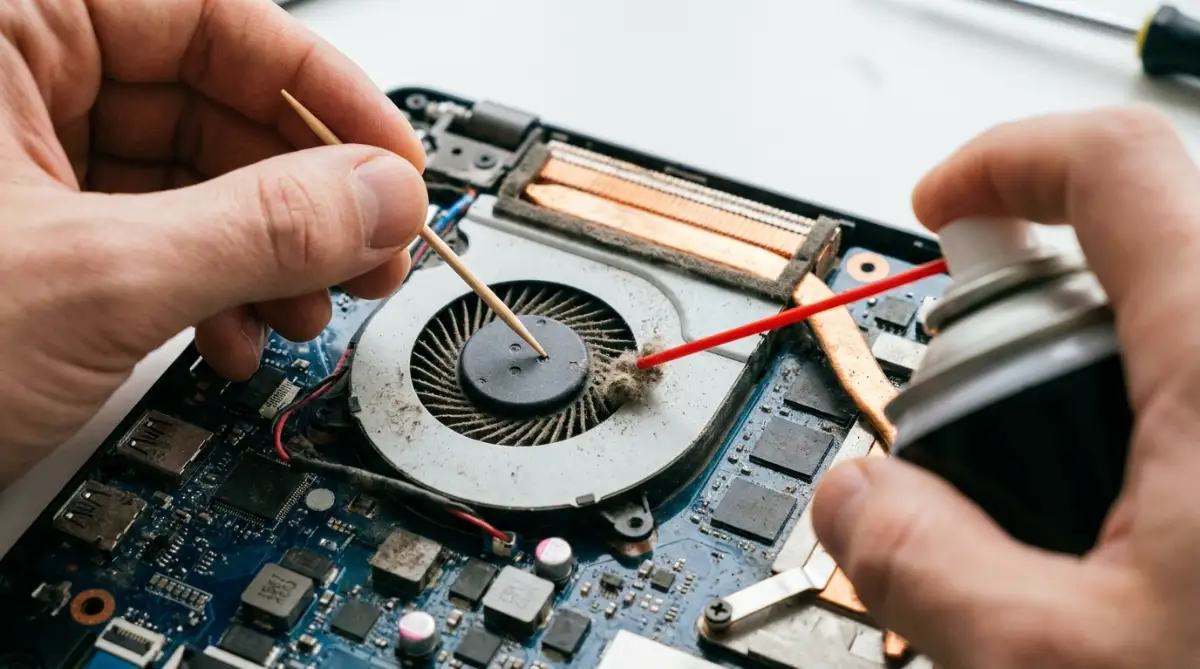
Always turn the machine completely off, unplug it, and use a tiny toothpick to hold the fan blade perfectly still while you spray the air. This forces the dust out safely without damaging the fragile spinning mechanism. Small maintenance errors like this end up costing hundreds of dollars in unnecessary replacement parts.
Keeping Your Workflow Silky Smooth Forever
Managing your hardware temperatures is really just about building smart, daily habits. You do not need to obsess over every single degree on your temperature monitor. You simply need to give your machine room to breathe and avoid putting it in suffocating environments.
Think of your computer as a high-performance sports car. You would not drive a sports car at maximum speed through heavy mud, so you should not force your processor to render 4K video while buried in a warm blanket. Keeping an eye on your background tasks ensures that your hardware is only working on the things that actually matter.
Many times, rogue background software acts just like an invisible intruder stealing your resources. It is very similar to how we must regularly check how to secure our smart home devices from outside threats to keep our networks running smoothly. A clean operating system automatically leads to a cooler physical machine.
Your Action Plan for a Cooler Setup Today
Start by simply lifting the back of your device right now. Go find two small books, two erasers, or a dedicated stand to instantly create that magical airflow pocket underneath. Next, open your system settings and temporarily pause your cloud storage sync during your heavy working hours.
If you notice unnecessary software launching every time you turn the machine on, disable them immediately. Just like adjusting hidden device settings immediately can protect your privacy, disabling startup programs protects your processor from doing pointless work. Every single background app you close reduces the electrical strain and lowers the internal heat.
You have invested a lot of money into your equipment, and it deserves to be treated with care. By keeping your hardware cool, you ensure that it will comfortably last for many years without slowing down. You will never have to experience that terrifying frozen screen right before a major deadline ever again.
I promise you, once I finally started taking my laptop's thermal health seriously, my daily anxiety completely vanished. My machine now runs silently even during massive video exports, and I can finally focus entirely on my creative work without any fear.
Common Questions About Laptop Heat Management
Is it completely normal for my keyboard to get warm while working?
Yes, it is entirely normal for the area directly above the keyboard to feel warm during heavy tasks. The internal cooling pipes often run right underneath those keys to push heat toward the back vents. However, if it gets too hot to comfortably touch, your system is definitely overheating.
Can an overheating laptop actually catch on fire?
While extremely rare, a severely overheating machine can cause the internal lithium-ion battery to swell and potentially catch fire. Modern computers have safety features that force them to shut down before reaching this dangerous point. Always address excessive heat quickly to protect your battery health.
Does keeping my machine plugged into the wall cause overheating?
Keeping your device plugged in when the battery is at one hundred percent does not usually cause extra heat. Modern premium devices intelligently bypass the battery and pull power directly from the wall. However, charging a completely dead battery while rendering heavy files will generate massive amounts of combined heat.
Will placing ice packs near my computer lower the internal heat safely?
You should never put ice packs or extremely cold items near your warm electronics. The extreme temperature clash creates moisture and water condensation directly inside the chassis. These invisible water droplets will instantly short-circuit your delicate motherboard and ruin the entire system permanently.
How often should I realistically clean the dust out of my cooling vents?
If you work in a normal office environment, safely blowing out the dust every three to four months is perfect. If you have extremely furry pets or work in a dusty room, you should aim to clean the vents every six weeks. Consistent cleaning prevents the dust from turning into a thick, unmanageable carpet over the fans.
Disclaimer: The information provided in this article is for educational and informational purposes only. Modifying internal hardware, applying thermal paste, or changing system voltages carries inherent risks and may void your manufacturer warranty. Always consult with a certified computer technician before attempting physical repairs or deep system modifications. The author and publisher are not responsible for any hardware damage, data loss, or system failures resulting from the application of these tips.