The Day My Digital Life Flashed Before My Eyes
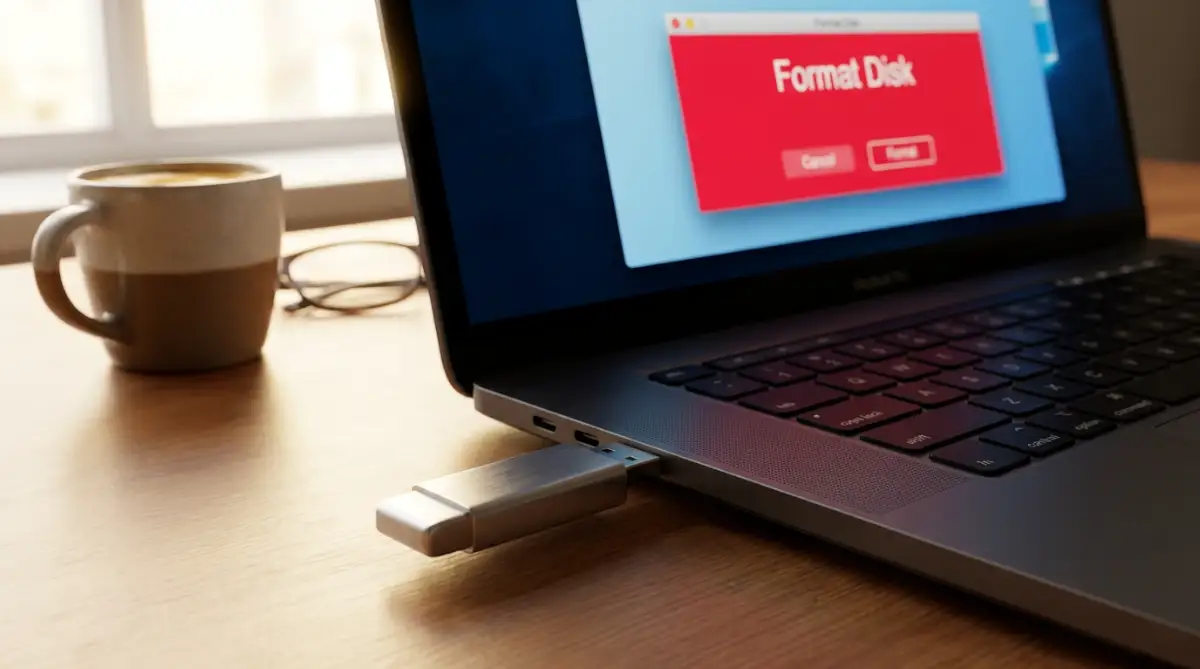
You plug your favorite flash drive into your laptop, take a sip of coffee, and wait for your project files to pop up. Instead, your computer freezes and hits you with the scariest message in the digital world: "You need to format the disk before you can use it." Your stomach instantly drops. Before you click anything and accidentally wipe out years of family photos or client work, stop right there. I have been in this exact nightmare, and I am going to show you how to pull your data out safely before it is gone forever.
Instead, my computer froze for a brief second before flashing a terrifying message. The system told me the disk was entirely unreadable and asked if I wanted to format it right then and there. I sat there in pure silence, staring at the tiny piece of metal holding weeks of my hard work.
My hands actually started shaking as I pulled the drive out and pushed it back in, praying for a different result. But the same error message popped up again, mocking my complete lack of a backup plan. I felt a cold sweat on my forehead because I knew exactly what was on that drive.
It was not just my client work stuck inside that plastic shell. I had my entire collection of recent family photos, sensitive personal documents, and financial sheets locked away in digital jail. All of it was suddenly out of my reach because of a single random error.
We honestly put way too much trust into these tiny electronic sticks. We throw them into our backpacks, leave them in hot cars, and pull them out of our computers without ever clicking the eject button. We just assume they will always work perfectly every single time we need them.
The 60-Second Rescue Plan
- Never click the "Format" button if your computer asks you to, as this will permanently erase your files.
- Clean the gold pins inside the USB connector with a soft brush to fix simple connection issues.
- If the drive shows as "RAW," your files are still inside; your computer just lost the map to find them.
- Always prioritize extracting your files with recovery software before you ever try to "repair" the broken drive.
Before You Panic: Understanding What Actually Broke
When a storage device suddenly stops working, your brain immediately assumes the absolute worst-case scenario. You probably think the inside of the drive has melted or completely fried itself beyond repair. However, the reality is usually much less scary than it seems.
Think of your storage stick like a massive public library filled with millions of books. The files you want to open are the books, and your computer relies on a specific digital index card to find where those books are stored. When a drive becomes unreadable, it rarely means the books are actually destroyed or missing.
Most of the time, that central index card has just become corrupted or misplaced. Your computer looks at the device, cannot find the directory, and simply throws its hands up in confusion. It asks you to format the drive because it wants to build a brand new, empty library from scratch.
You should never ever click the format button when you see this message pop up on your screen. Formatting acts like a massive bulldozer that will clear out your entire library just to build a new index system. If you want to keep your original files safe, you must treat the current setup with extreme care.
The Rookie Mistake vs. The Pro Fix
The Rookie Mistake: Clicking "Format" just because the computer told you to, hoping it will magically fix the drive so you can read your files again.
The Pro Fix: Instantly clicking "Cancel," safely unplugging the drive, and testing it in a completely different operating system (like a Mac or even a smart TV) before running any repair software.
There are basically two main reasons why your device is currently throwing a fit and refusing to cooperate. It is either dealing with a logical software breakdown, or it has suffered actual physical hardware damage. Knowing the difference between these two issues will completely change how you approach the rescue mission.
The Hardware Versus Software Dilemma
Hardware damage means there is a physical crack, a bent connector, or a burnt chip inside the plastic casing. If your device was dropped in water, stepped on, or completely bent while plugged in, you are likely dealing with physical hardware failure. This is often the hardest type of problem to solve at home.
On the other hand, logical software corruption is incredibly common and highly fixable without needing a lab. This happens when the device is pulled out during a transfer, or when a random power surge scrambles the background data. The physical parts are perfectly fine, but the internal language is temporarily scrambled.
To help you figure out what you are dealing with, I have put together a simple comparison. Check the signs below to see which category your situation falls into right now.
Phase One: Simple Environmental Checks
Before we start using any advanced recovery methods, we need to rule out the simplest possible problems. Sometimes the issue is not actually with the storage stick itself, but rather the environment around it. You would be surprised how often a seemingly dead device is just sitting in a bad port.
First, take the device out of your computer and grab a small flashlight to look inside the metal connector. You are looking for any trapped dust, pocket lint, or strange debris blocking the tiny gold pins. If those pins cannot make a solid connection with your computer, the data cannot flow back and forth.
If you see some dirt, gently blow it out or use a soft, dry brush to clear the area. Never use water, rubbing alcohol, or anything wet to clean the inside of these connectors. Once it looks completely clear, you are ready to test it again in a different location.
Always avoid plugging the device into a USB hub or a keyboard extension port during a crisis. Those external hubs often do not provide enough direct power to wake up a struggling storage stick. You need to plug it directly into the main body of your computer to get the best possible connection.
If you are using a desktop tower, skip the ports on the front panel entirely. Reach around to the back of the machine and plug it directly into the motherboard ports. These back connections provide a much stronger and more stable power supply, which is exactly what a struggling device needs.
My Personal Mistake and What I Learned
I actually made a terrible mistake once by instantly running a powerful repair command before securing my files. I thought I was fixing the drive, but the tool aggressively rearranged my corrupted data and permanently overwrote my most important photos. I learned the hard way that you must always prioritize pulling the files out safely before you ever try to "fix" the broken drive itself.
Testing Across Different Operating Systems
If the direct motherboard port still gives you an error, you need to change the operating system entirely. Sometimes, a Windows computer will aggressively refuse to read a slightly corrupted directory. However, an Apple Mac computer might completely ignore the minor error and mount the drive perfectly fine.
If you have a friend or family member with a different brand of computer, ask to borrow it for five minutes. Plug your device in and see if the files pop up on their screen normally. If they do, immediately drag and drop those files onto their desktop to save them.
My 3-Second Diagnostic Tree:
- Does the drive smell like burning plastic? -> Stop. Unplug it immediately. The hardware is dead.
- Does your computer ask to format it? -> Good news. The physical drive works, the software directory is just confused.
- Does it show up as "RAW" in Disk Management? -> Perfect. Do not format it. You just need a data extraction tool to pull the files out safely.
You can also try plugging the device into a smart television or a modern gaming console. These media devices use a completely different method to read storage systems, and they are sometimes much more forgiving. If your TV can see your family photos on the screen, you at least know the data is still alive and well inside the stick.
Bold Introduction to Visual Guidance:
If you are feeling a bit overwhelmed by the technical checks, seeing the process in action can really help calm your nerves. Watch this quick visual demonstration below to see exactly how these physical connection tests should look before you move forward.
Phase Two: The Disk Management Investigation
Let us assume you have tried different ports, cleaned the connectors, and the device still refuses to show your folders. It is time to look under the hood of your computer to see what is really happening in the background. We are going to use a built-in tool that acts like an X-ray machine for your storage devices.
If you are on a Windows machine, right-click on your start menu button and look for an option called Disk Management. When you click it, a new window will pop up showing every single storage drive connected to your system. Do not worry if it looks a bit complicated at first glance.
Scroll down the list at the bottom of that window and look for a disk that matches the size of your broken stick. For example, if you have a 32-gigabyte stick, look for a block showing roughly that same number. This is where the real detective work begins.
If your device shows up in this list, you can officially breathe a massive sigh of relief. This proves that your computer's motherboard can physically detect the hardware, meaning the internal chips are likely completely fine. The issue is almost certainly a software confusion problem that we can bypass safely.
Take a close look at the words written inside that specific block on your screen. Does it say the word "Online" and have a blue bar across the top? Does it say "RAW" or perhaps "Unallocated" with a black bar instead?
The Missing Drive Letter Mystery
Sometimes, your computer just forgets to assign an alphabet letter to your device when you plug it in. Every storage drive needs a letter, like the letter C or the letter D, to show up in your regular folder view. If your stick is missing its letter, it will seem completely dead and unresponsive to you.
You can fix this easily right from that same Disk Management window. Simply right-click on the block representing your flash drive and choose the option to change the drive letter and paths. A small box will appear letting you add a brand new letter of your choosing.
Pick a letter from the drop-down menu that is not currently being used, like the letter M or the letter Z. Click okay and wait a few seconds for the system to process your request. If a missing letter was the only problem, your folders will instantly pop up on the screen like nothing ever happened.
Dealing with the RAW File System Reality
However, you might look at that block and see the terrifying word "RAW" written across it instead. A RAW status means your computer recognizes the physical storage space, but it can no longer understand the language written on it. The directory index we talked about earlier has completely collapsed.
When a drive goes RAW, your computer will aggressively beg you to format it so it can start over. Again, you must firmly ignore these prompts and keep the drive exactly as it is. Your precious photos and documents are still sitting safely inside that RAW space; they just lack the proper door for you to walk through.
You cannot fix a RAW drive simply by changing a letter or cleaning a port. You have to use specialized recovery methods that safely reach into the RAW data and pull out the files one by one. The goal is to copy the data out to a safe place, not to repair the broken drive itself.
Debunking Dangerous Internet Myths
Before we move into the actual recovery process, we need to clear up some incredibly dangerous advice floating around the internet. When people panic about lost data, they often search forums and find terrible tips that will permanently destroy their files. We need to make sure you do not fall into these traps.
Myth number one claims that you should put a failing flash drive inside a plastic bag and stick it in your kitchen freezer. The theory is that the cold will shrink the internal metal parts and force a better connection. This is absolutely false and will likely introduce moisture into the drive, causing a permanent short circuit.
Myth number two suggests that you should quickly format the drive so the computer can read it, and then run recovery tools later. This is an awful idea because formatting actively overwrites the very index you are trying to rescue. Every time you write new data to the drive, you destroy a piece of your old missing data forever.
The absolute best thing you can do for a corrupted drive is to leave it alone and stop adding new things to it. Treat the device like a fragile crime scene where nothing should be touched or altered. Your entire focus should be purely on reading the data safely without making any changes to the original hardware.
Understanding Read-Only Mode
Sometimes, your storage stick will try to protect itself when it senses internal software corruption. It will suddenly lock itself into a permanent read-only state to prevent any further damage to the existing files. You will be able to see your files, but you cannot delete them, move them, or add anything new.

If this happens, consider yourself incredibly lucky because the drive just did you a massive favor. It locked the doors to keep the data safe while you figure out a rescue plan. All you need to do in this scenario is simply drag your files over to your computer's main hard drive to back them up safely.
Do not try to force a read-only drive back into normal working condition by tweaking system settings. It went into lockdown for a very good reason, and it is likely on the verge of complete failure. Once you have copied all your important files out, you should permanently retire that specific plastic stick and buy a new one.
Preparing for the Software Extraction
If the drive is showing as RAW, and simple tricks have not worked, we have to move to safe software extraction. This means we will rely on specialized programs designed to bypass the broken directory and read the raw binary code directly. It sounds highly technical, but modern tools make this process incredibly simple for normal people.
To prepare for this step, you need to make sure you have enough free space on your computer's main hard drive. If your broken stick is 64 gigabytes, you need at least 64 gigabytes of free room on your laptop to hold the rescued files. You can never save recovered files directly back onto the broken drive itself.
You also need to make sure your computer is plugged directly into a wall outlet, not running on battery power. The software extraction process can sometimes take several hours to scan millions of lines of corrupted data. If your laptop battery dies in the middle of a deep scan, you risk completely losing the progress and stressing the damaged drive even further.
You are now in the perfect position to safely pull your digital life back from the edge of the cliff. We are going to approach this next phase with patience, logic, and extreme care. Your family photos and important work documents are waiting patiently in the dark, and we are finally ready to go get them.
Now that we have covered the foundational steps in the first part of our guide, it is time to move forward. We are going to explore some highly effective strategies that experts use to stay ahead of the curve.
These are not just theoretical ideas, but real-world practices that you can apply immediately. By the end of this section, you will have a clear roadmap for long-term success.
Taking Your Daily Workflow to the Next Level
You might be wondering how top professionals seem to manage everything without breaking a sweat. The secret usually lies in how they handle their repetitive daily routines.
Instead of working harder, they focus on working much smarter by delegating the boring stuff. This is exactly where you can start making massive changes in your own life.
Start with Micro-Adjustments
Most people try to change their entire workflow in a single day. This is a massive recipe for burnout and frustration.
Instead, you should focus on tiny, almost invisible changes that save you just five minutes a day. Think about how much time you waste sorting through messy email folders or organizing files.
If you set up simple rules to sort your inbox automatically, you win back hours every single month. You can easily learn how to automate repetitive office tasks using free open source tools without spending a dime. Once you build this habit, you will never want to go back to doing things manually.
The Power of Pairing Human Creativity with Software
Another massive secret of highly productive people is understanding exactly what to hand over to software. You should never try to automate the creative parts of your work.
Instead, let computers handle the data entry, while you focus on brainstorming and strategy. This perfect balance makes your daily routine feel incredibly smooth and rewarding.
If you want to dive deeper into this balance, you should understand how natural language processing algorithms actually work behind the scenes. This knowledge gives you a massive advantage over people who just blindly use software. According to research published by the Massachusetts Institute of Technology (MIT) Sloan School of Management, teams that combine human intuition with smart software perform significantly better than those using software alone.
Protecting Your Hardware for the Long Run
We often talk about software, but your physical devices are the real backbone of your productivity. If your laptop dies in the middle of a big project, all your smart workflows instantly become useless.
Many people completely destroy their device batteries by charging them incorrectly over time. You need to stop following outdated advice and learn the ultimate truth about lithium-ion battery charging myths to keep your gear running perfectly. Treating your hardware with respect ensures that your digital systems never crash when you need them most.
Building an Unbreakable Environment
Let me share a very practical scenario with you. Imagine you are pitching a massive idea to a client over a video call, and suddenly your screen freezes.
All your hard work is instantly ruined just because of a weak router connection. You absolutely must take the time to figure out how to build a fail-proof internet setup for remote work anywhere.
Having a backup connection is like having a spare tire in your car. You might not need it every day, but it will absolutely save your life in an emergency. The Federal Communications Commission (FCC) offers excellent guidelines on understanding bandwidth needs for stable home networks.
Working Smart on the Go
Once your home base is secure, you might want to start taking your work to coffee shops or even different countries. This freedom is amazing, but it requires a very specific mindset to pull off successfully.
You need to have your digital tools accessible from any device, no matter where you are. A great strategy is exploring how to work smart not hard by automating daily tasks using cloud AI systems. This ensures that even if you spill coffee on your laptop, your entire business remains completely safe in the cloud.

The Hidden Traps That Can Ruin Your Progress
Now, we need to have a very honest and serious conversation about the dark side of this journey. Trying to upgrade your digital life is exciting, but there are massive potholes along the road.
If you step into these traps, you might end up worse off than when you started. Let's look at the emotional and practical disasters you absolutely must avoid.
The Trap of Over-Complication
It breaks my heart to see incredibly smart people build systems so complex that they forget how to use them. They download twenty different apps, connect them all together, and expect magic to happen.
Instead, they spend three hours a day just trying to fix broken software links. This creates a terrible feeling of anxiety and absolute dread every time they open their computer.
Remember, the goal is to make your life easier, not to become a full-time system administrator. Always start with one single tool, master it completely, and only add another when you genuinely need it.
Ignoring Your Personal Privacy and Security
Another massive mistake is blindly downloading every shiny new app without reading the permissions. People easily give away their contact lists, location data, and personal messages just to use a free calendar tool.
This is a terrible habit that can completely compromise your digital identity and personal safety. You must be aware of the hidden truth about mobile app tracking and how to block it before you install anything new.
Once your data is out there, getting your privacy back is almost impossible. The Cybersecurity and Infrastructure Security Agency (CISA) strongly advises users to review app permissions regularly to prevent silent data theft.
Neglecting Your Own Mental Wellbeing
This is perhaps the most emotional and dangerous pitfall of them all. When you finally build a super-efficient system, the lines between your work life and home life begin to blur completely.
Because you can work from anywhere, you end up feeling like you have to work from absolutely everywhere. This leads to severe exhaustion, sleep problems, and a deep sense of loneliness.
You must learn how to protect your mental health while working as a digital nomad or a remote worker. If you do not actively schedule time to step away from your screens, your brain will eventually force you to shut down. The American Psychological Association (APA) highlights that establishing firm boundaries between work hours and personal time is essential for avoiding long-term psychological burnout.
The Illusion of Buying Success
Have you ever thought that buying a brand-new, expensive gadget would finally make you productive? We have all been there, staring at a new tablet and hoping it will magically cure our procrastination.
The harsh truth is that expensive tools do not fix broken habits. If you cannot focus on reading a physical book, a glowing screen will not help you either.
You can read all about why your premium e-reader isn't making you a faster learner and how to fix it to understand this trap better. Always invest your energy into fixing your habits first, and worry about buying fancy hardware later.
Your Final Action Plan for a Smarter Work Life
We have covered a lot of ground today, from smart system-building to protecting your mental health. Now, it is time to turn all this reading into actual, physical momentum.
You do not need to change your entire life tonight. Instead, I want you to follow a very simple, stress-free action plan starting tomorrow morning.
Phase 1: The Morning Audit
When you sit at your desk tomorrow, do not immediately open your email or chat apps. Take a blank piece of paper and write down the three most annoying tasks you have to do that day.
Ask yourself if a piece of software could handle at least one of those tasks for you. Just identifying the problem is a massive first step toward fixing it forever.
Phase 2: Setting Firm Boundaries
Next, I want you to set a strict "shutdown time" for your devices. Let us say that at exactly 6:00 PM, you close your laptop and turn off your work notifications.
Do not cheat on this rule, no matter how "urgent" an email feels at the moment. Your brain desperately needs this downtime to recover and prepare for the next day.
Phase 3: Educating Yourself Gradually
Finally, commit to learning one new digital skill every single week. It does not have to be anything complicated or overwhelming.
Maybe you spend twenty minutes watching a video on how to format spreadsheets better. Over a few months, these tiny learning sessions will turn you into an absolute powerhouse at your job.
Questions People Frequently Ask About Smart Workplaces
Will these new intelligent systems completely take away my job?
This is a very common fear, but the reality is much more positive and encouraging. Smart software is designed to take away the boring parts of your job, not your actual role. You can learn more about the truth about AI replacing software engineers and what you must know to put your mind at absolute ease.
What if I have zero technical skills to start with?
You absolutely do not need to be a computer genius to improve your daily workflows. Most modern platforms use simple drag-and-drop features that anyone can figure out in minutes. If you can use a smartphone to order food, you have enough technical skill to start right now.
How do I know which tasks are safe to hand over to software?
Always start with tasks that require no human emotion or complex decision-making. Things like copying data, scheduling meetings, or organizing files are perfect candidates. Keep the creative, relationship-building, and strategic tasks strictly in your own hands.
How do I stop my remote work from taking over my family time?
You need to create physical and digital barriers between your office and your living space. If possible, only work in one specific room and never bring your laptop into your bedroom. Use specific browser profiles for work so you do not see business emails during your personal time.
Is it really necessary to pay for premium tools?
Not at all, especially when you are just starting out on this journey. There are thousands of brilliant, free open-source tools that do exactly what the expensive ones do. You should only upgrade to paid versions when you actually start making more money using the free ones.
I genuinely believe that you have the power to completely transform your daily routine starting today. My own life changed the moment I stopped fighting against my workload and started using these simple strategies instead. Take a deep breath, pick one small tip from this guide, and watch how quickly your days become easier and far more enjoyable!
Disclaimer: The information provided in this article is for educational and informational purposes only. It does not constitute professional IT, psychological, or financial advice. Always conduct your own research or consult with a certified professional before making significant changes to your digital security, business operations, or lifestyle habits. The author and publisher are not responsible for any outcomes resulting from the use of the tools or strategies mentioned.