Quick Action Plan: Fix Your Audio Today
- Turn off your phone: Stop your smartphone from silently stealing the connection.
- Clear the ghosts: Delete all the old, unused devices clogging up your desktop system settings.
- Move the router: Create physical distance between your Wi-Fi box and your computer to stop signal jamming.
- Check the hardware: Screw in those forgotten motherboard antennas or upgrade to a modern USB adapter.
The Invisible Wall Between Your Gadgets (And How It Ruins the Day)
You stare at your monitor, watching that tiny blue loading circle spin endlessly while your expensive earbuds stay totally silent. It is beyond annoying when you have an important online call in five minutes, and your desktop acts like your headset does not even exist. You do not need an IT degree to figure out why your audio gear is failing you today. Let's skip the confusing tech jargon and fix this frustrating connection loop right now so you can get back to your day.
And I waited a bit more, watching that annoying little circle spin endlessly on my screen. Panic quickly started to set in as my meeting time approached, and my expensive computer simply refused to recognize my audio gear. I found myself frantically clicking buttons, turning things off and on, and literally sweating through my favorite shirt.
The meeting finally started, and I was the only person aggressively waving my hands in front of the camera, trying to explain that my audio was broken. I felt entirely helpless in my own home office. It was incredibly embarrassing, and I spent the rest of the day feeling frustrated with my expensive electronics.
Have you ever experienced this exact same nightmare? We rely heavily on these little gadgets for work, entertainment, and our daily mental escapes. When they suddenly disconnect or refuse to pair, it completely disrupts our natural flow.
Decoding the Hidden Language of Wireless Audio
You might think that connecting two modern devices should be as easy as flipping a light switch. In reality, these gadgets are constantly trying to talk to each other in a very crowded, noisy digital room. When your computer fails to find your headset, it usually means something is blocking their conversation.
We need to look at this problem logically, just like a doctor diagnosing a mild cold. You do not need a computer science degree to figure out why your audio is failing. You just need to know exactly where to look and what specific buttons to push.
Let us break down the absolute best ways to force your computer and your headset to finally work together. We will start with the easiest tricks and move toward the more advanced settings.
The Secret Double-Connection Problem
One of the most common reasons your desktop cannot find your headset is because another device has already stolen the connection. Your little audio devices are incredibly loyal to the last thing they were attached to. If you paired them with your smartphone yesterday, they will aggressively search for that phone today.
When you turn them on near your computer, they immediately reach out to your phone instead. The computer stays completely blind to them because they are already busy talking to a different machine.
I learned this the hard way when I left my smartphone in the living room with the connection setting turned on. My earbuds were secretly connecting to my phone through two solid walls instead of the computer sitting right in front of me! Now, I always make sure to turn off my phone's signal before trying to link with my PC.
Quick Reality Check: The "Device Stealing" Hierarchy
Think of your wireless connection like a very loyal dog. Here is exactly how your headset decides who to listen to first:
- First Choice: The exact device it was connected to yesterday (usually your phone).
- Second Choice: The device closest to it with an open broadcast signal.
- Last Choice: The brand new computer you are currently screaming at.
- Always turn off your phone's connection setting completely before opening your desktop settings. It saves you so much unnecessary stress!
Giving Your Gadgets a Blank Slate
Sometimes, your audio gear holds onto corrupted memory from past attempts. It remembers the failed connections and gets stuck in a confusing loop. You need to wipe its short-term memory completely clean.
Almost every brand has a specific way to perform a "hard reset" on the hardware. Usually, it involves placing the pieces back into their charging case and holding the back button for about ten to fifteen seconds.
You will typically see a light flash red or orange, letting you know the memory is totally wiped. Once you do this, your computer will see them as a brand-new product fresh out of the factory box.
Myth vs Reality: The Proximity Trap
Myth: As long as you are in the same room, your devices should link up instantly without any issues.
Reality: Physical objects and invisible waves easily disrupt the initial handshake between your machines. Routers, microwaves, and even thick wooden desks can heavily interfere with the pairing process.
Always keep your headset directly next to the computer tower or laptop keyboard during the very first setup. Once they successfully establish a relationship, you can walk around the room freely. But for that first handshake, they need to be extremely close to each other.
The Hidden USB 3.0 Interference Issue
This is a strange scientific fact that catches many people off guard. Did you know that USB 3.0 ports can actually emit a frequency that jams nearby wireless signals? If your computer tower has a lot of things plugged into the blue USB ports, they might be blocking your audio.
If you use a small dongle to get a wireless signal on your PC, never plug it directly next to a heavy-duty USB cable. The data rushing through that thick cable creates an invisible shield of static.
Move your little dongle to the front of the computer or use a small extension cord to get it away from the other messy wires. You will be amazed at how quickly your desktop suddenly finds your missing headset.
Clearing the Ghost Devices Haunting Your System
Your computer has a terrible habit of remembering every single thing you have ever connected to it. Over time, your system settings become clogged with "ghost devices" that you no longer even own. These old memory files easily confuse your system when it tries to find something new.
You need to go into your settings menu and completely clear out the trash. Remove old speakers, broken keyboards, and past headsets that you threw away months ago.
Do you want to see exactly how to clear out these annoying ghost files safely? Watch this incredibly helpful breakdown where a tech expert shows you the exact buttons to click on your screen.
The Outdated Translator Problem (Driver Mysteries)
Imagine trying to speak English to someone who only understands French. You would both get frustrated and eventually stop trying to talk. This is exactly what happens when your computer has old, outdated drivers.
Drivers are simply small pieces of software that act as translators between your hardware and your operating system. When these translators get old, they stop understanding the new technology packed inside your modern earbuds.
You have to manually force your system to download the newest translator from the internet. Going into your system manager and right-clicking on your network adapters allows you to search for these fresh updates.
Why Battery Levels Constantly Lie to You
You might look at your charging case and see a solid green light, making you believe everything is fully powered. However, the case battery and the actual earpiece batteries are completely different things. Sometimes, the metal charging contacts get covered in microscopic dirt or natural skin oils.
When this happens, the case has full power, but the actual earpieces are completely dead. A dead earpiece will never show up on your computer screen, no matter how hard you try.
Take a clean microfiber cloth or a dry cotton swab and gently wipe down the little metal pins inside the case. This ensures the power actually flows into the devices, giving them enough energy to send out a strong signal.
Understanding Audio Profiles (Headphones vs Headset)
Have you ever finally connected your device, but the sound quality is absolutely terrible? This happens because your computer gets confused about what kind of device you are actually using. It has two different modes: one for listening to high-quality music, and one for making phone calls.
The "Hands-Free Telephony" mode activates the microphone, but it completely ruins the incoming sound quality. Your computer thinks you are just making a basic voice call.
You can fix this easily by going into your sound control panel and disabling the hands-free option if you only want to listen to music or movies. This forces the computer to send high-quality audio directly to your ears.
Good Setup vs Bad Setup Comparison
Sometimes, a quick visual guide helps you understand exactly what you are doing right or wrong. Here is a simple breakdown of how your workspace affects your connection success.
When to Suspect Hardware Damage
We always hope that a quick settings tweak will solve all our problems. But sometimes, physical hardware actually breaks from regular daily use. If you have tried wiping the memory, updating the translators, and hiding your phone, the internal antenna might be damaged.
Dropping your charging case on a hard floor can easily knock tiny internal wires completely loose. When this happens, the device will still light up and charge, but it physically cannot broadcast its name to your desktop.
If your smartphone also suddenly refuses to find the headset, you can safely assume the physical hardware is broken. It is a tough pill to swallow, but it saves you hours of pointless computer troubleshooting.
Managing Your Expectations with Older Computers
It is important to be highly realistic about the equipment you own right now. If your desktop computer is incredibly old, its internal wireless hardware is likely extremely weak. Older machines use older technology standards that struggle to communicate with brand-new gadgets.
You cannot force an old, weak antenna to perform like a brand-new premium model. The signals are just too different, and they will constantly drop out or refuse to pair altogether.
Buying a cheap, modern USB receiver from a local store can completely bypass the old internal antenna. This instantly upgrades your old machine, allowing it to easily talk to any modern audio device you own.
Creating a Peaceful Tech Environment
Remember that these machines are just following simple rules programmed into their software. Once you figure out which rule is being broken, the solution usually becomes incredibly obvious.
By keeping your digital space clean, updating your system translators regularly, and understanding how signals travel, you take back full control. You will never have to wave your hands silently in an online meeting ever again.
A Quick Recap on Connection Priorities
Let us summarize the absolute most important things to check before you give up entirely. Always ensure your smartphone is not silently stealing your connection from across the house. Always wipe the temporary memory of your earpieces if they act strange.
Make sure your computer does not have old ghosts haunting the device list. Keep the physical area free of heavy metal objects and thick cables that block invisible signals.
Taking just five minutes to set up your environment correctly will save you endless hours of future frustration. You deserve a seamless, high-quality audio experience every single time you sit down to work or relax.
Mastering Your Audio Setup Like a Tech Professional
Once you successfully get your sound working again, you might think the battle is entirely over. However, technology has a funny way of breaking down again just when you get comfortable. We need to look at how to maintain this perfect connection so you never have to panic before a morning meeting again.
I want to share some incredibly powerful secrets that audio technicians use to keep everything running smoothly. These are not basic restart tricks, but rather deep system tweaks that completely change how your machines talk to each other. By applying these methods, you will create an environment where your devices simply refuse to fail.
You do not need to be a computer programmer to understand these concepts. We are going to walk through them together, using simple steps that anyone can follow at home. Let us look at how you can permanently upgrade your digital workspace today.
The Hidden Wi-Fi Router Battle
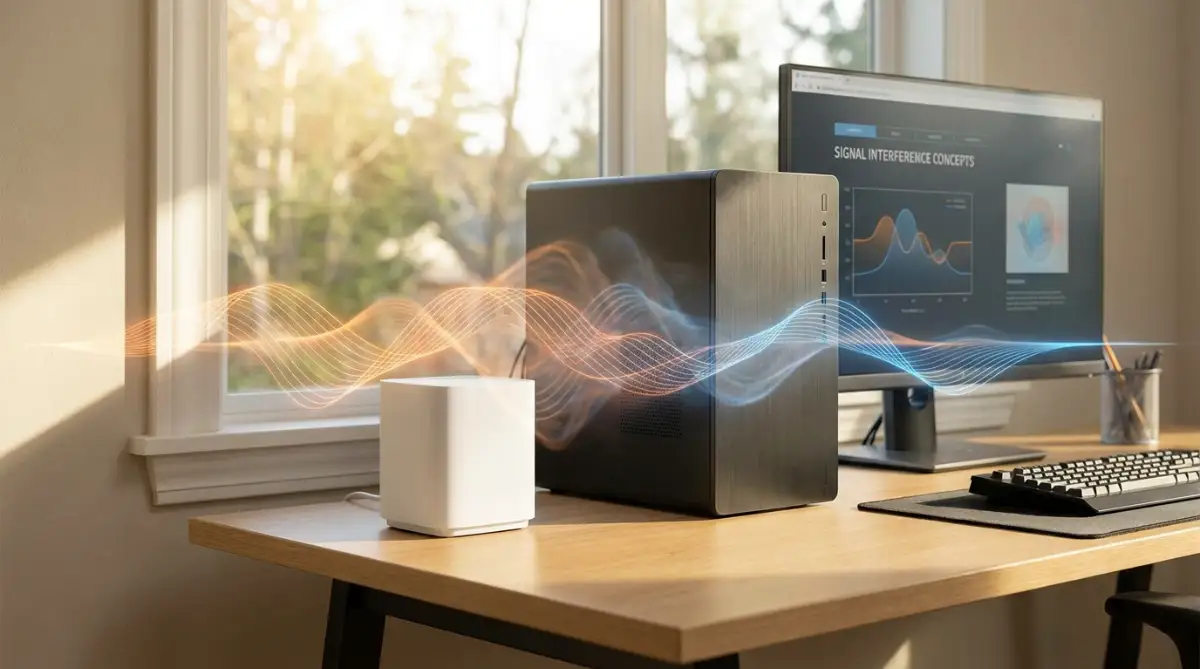
Most people have no idea that their home internet router is actively fighting their audio equipment. Both your router and your little earpieces use the exact same invisible radio frequency to send information. They both broadcast on the 2.4 GHz band, which means they are shouting over each other in the exact same language.
When your computer sits too close to your internet router, the heavy Wi-Fi signal completely drowns out the weak audio signal. It is like trying to whisper a secret while standing next to a roaring jet engine. Your poor computer simply cannot hear the tiny sound waves trying to reach it.
You can fix this easily by logging into your internet router and switching your home network to the 5 GHz band. If you want to learn more about how these overlapping signals ruin your day, reading up on understanding radio frequency interference can really open your eyes. Moving your router even just three feet away from your desk can also instantly solve this dropping issue.
The Smartphone App Firmware Trick
Here is a brilliant secret that most desktop users completely ignore when buying new audio gear. Your tiny earpieces actually contain their own miniature operating system that needs regular maintenance. They get software updates just like your mobile phone or your laptop computer.
However, you usually cannot update these little devices directly through your desktop computer. You have to connect them to their official smartphone app first to download the latest performance patches. Once you finish updating your audio equipment firmware on your phone, they will perform significantly better when you move them back to your computer.
I make it a habit to connect my headset to my phone app at least once a month just to check for new downloads. Manufacturers frequently release small patches that specifically fix computer connection errors. Taking five minutes to grab these updates will save you hours of future headaches.
Rebooting the Deep System Services
Sometimes, the surface-level buttons on your computer screen lie to you completely. You might click the little switch to turn your connection off and on, but nothing actually happens deep inside the machine. The core program running in the background might be completely frozen.
You can manually force this hidden program to wake up by opening your computer's 'Services' menu. You just type "Services" into your bottom search bar, find the one labeled "Bluetooth Support Service," and right-click it to hit restart.
This sends a powerful electrical jolt to the specific software managing your sound devices. It forces the computer to completely rebuild its invisible network and start hunting for your headset again. If you often worry about messing up system settings, safely backing up your system data beforehand is always a smart idea.
Upgrading Your Physical Hardware Wisely
If you use a large desktop tower that sits on the floor, the metal case acts as a massive shield. It blocks almost all the wireless waves trying to escape from the motherboard inside. This means the signal barely reaches your desk chair, let alone your actual ears.
Many people try to fix this by buying cheap USB adapters from random online stores. Unfortunately, these cheap adapters overheat quickly and provide terrible sound quality during long work sessions. Just like keeping your laptop cool is highly important for performance, buying quality hardware prevents sudden audio crashes.
Spend a few extra dollars on a high-quality, branded adapter with a visible external antenna. Plug it into the front panel of your machine, pointing directly at where you usually sit. This direct line of sight guarantees a flawless, uninterrupted listening experience.
Dongle Buying Rule of Thumb:
If you decide to upgrade your old hardware, never buy the tiny, flat USB receivers that sit flush against your computer case. They have almost zero internal antenna range. Always spend a few extra dollars on a model that has a visible, flexible plastic antenna sticking out of it. I made this exact mistake last year, and upgrading to a visible antenna instantly stopped my audio from dropping out every time I turned my head.

The Silent Traps That Ruin Your Audio Experience
We often become our own worst enemies when trying to set up our personal workspaces. We rush through the initial setup process because we are eager to just start listening to music or join a call. This rushing leads to easily avoidable traps that cause massive headaches down the road.
I want to highlight the specific things that people do incorrectly without even realizing it. These actions slowly degrade your hardware and confuse your operating system until everything completely stops working. Avoiding these common pitfalls will extend the life of your expensive tech significantly.
Let us explore the bad habits you need to break right now if you want reliable daily performance. Recognizing these mistakes is the very first step toward a stress-free digital life.
The Motherboard Antenna Disaster
This is perhaps the most common and hilarious mistake made by people who buy custom desktop towers. When you buy a high-end motherboard, it almost always comes with two small plastic sticks in the box. People often throw these sticks in a drawer, thinking they are just optional Wi-Fi boosters.
Those little plastic sticks are actually your main antennas, and they handle both Wi-Fi and your audio connections! If you do not screw them into the gold circles on the back of your computer, your signal range drops to about two inches.
I spent three days yelling at my expensive new computer because my headset kept disconnecting randomly. Then I realized I left the antennas sitting in the original cardboard box in my closet. The moment I screwed them in, my audio worked flawlessly from all the way across my house.
Ignoring Invisible Battery Degradation
We treat our wireless gadgets like they will last forever, completely ignoring the fragile chemistry inside them. The tiny power cells inside your earpieces naturally lose their strength over time, especially if you leave them plugged in constantly. When the internal power gets weak, the broadcast signal becomes incredibly fragile.
If your device connects perfectly but drops out ten minutes later, you likely have a dying power cell. Following good charging habits and protecting your internal lithium battery health prevents the signal from fluctuating wildly.
Never leave your charging case sitting in direct, hot sunlight on your desk. Heat is the ultimate enemy of tiny electronics, and it will destroy their ability to hold a solid connection with your computer.
The Trap of the Crowded Device List
I have seen people's computer screens where they have thirty different old audio devices listed in their settings. They keep adding new gadgets over the years but never take the time to delete the old ones. This massive list confuses your computer every time you turn it on.
When you boot up your machine, it frantically tries to talk to every single item on that list. This creates an invisible traffic jam that prevents your current, active headset from getting through the door.
Take ten minutes every few months to clean house and remove anything you no longer own. Just like adjusting hidden privacy settings keeps your social media clean, clearing old devices keeps your operating system running fast.
Buying Features Your Computer Cannot Handle
Marketing companies do an amazing job of selling us features that sound incredibly impressive on the box. You might buy a brand-new headset that promises high-definition sound and instant pairing capabilities. But if your computer is five years old, it physically lacks the hardware to support those fancy features.
You end up forcing two incompatible generations of technology to work together, resulting in constant system crashes. Before you buy expensive new gear, you should always check the official Microsoft hardware guidelines for your specific machine.
Understanding what your current setup can actually handle saves you from wasting money on features you can never use. Sometimes, a basic, reliable model performs far better than a premium model on an older machine. It is all about matching the right tools together for a stable, working environment.
Expecting Perfect Silence in a Noisy Room
People often blame their connection when they hear static or background noise during a call. They assume the wireless signal is failing, when in reality, the microphone is just highly sensitive. Your computer is doing its job perfectly, but your environment is simply too loud.
If you work in a busy house or a loud office, you need to understand how your gear actually processes sound. Learning about the science behind total silence helps you realize that background hiss is often normal.
Do not go into your computer settings and mess with the system files just because you hear a washing machine in the background. Address your physical environment first before you start deleting system files out of pure frustration.
Reclaiming Your Digital Peace of Mind
Dealing with stubborn technology can easily drain your energy and ruin a highly productive morning. However, you now possess the exact knowledge needed to take back complete control of your workspace. You no longer have to sit there helplessly while the loading circle spins on your screen.
By applying these logical steps, you are essentially training your devices to behave exactly how you want them to. You know how to clear out the digital clutter, fix the invisible signal jams, and reset the memory perfectly. You have upgraded yourself from a frustrated user into a capable problem solver.
Think about how much smoother your daily routine will be when your audio connects instantly every single time. Whether you are managing daily project tasks or just relaxing with some music, you deserve a seamless experience.
Take a few minutes today to check your physical antennas, move your router, and clear out those old ghost devices. A little bit of proactive maintenance right now will save you from a major headache tomorrow.
My biggest realization was that technology should always serve me, not the other way around. I finally stopped letting these little gadgets ruin my mood, and I hope these tips bring you the exact same lasting relief!
Common Questions About Desktop Audio Issues
Why does my PC say paired but I hear absolutely no sound?
Your computer likely sent the audio signal to the wrong output destination by mistake. You need to click the small speaker icon in your bottom taskbar and manually select your actual headset from the list. Sometimes, the computer gets confused and tries to send the sound to your monitor instead.
Can I connect two pairs of wireless earbuds to one desktop?
Standard desktop systems only allow one active audio stream to play at a single time. If you want two people to listen simultaneously, you will need to buy a special dual-transmitter adapter. These small USB devices split the signal physically so both headsets receive the exact same audio perfectly.
Do wireless headphones lose sound quality on older computers?
Yes, older machines use outdated broadcast technology that compresses the audio files heavily to save space. This heavy compression makes your high-quality music sound slightly muddy or distant. Upgrading to a modern USB adapter instantly fixes this bottleneck and restores crisp, clear sound.
How do I force my PC to find my completely hidden headset?
First, ensure you are holding down the pairing button on your specific charging case until the lights flash rapidly. If your computer still sees nothing, turn your computer's connection setting entirely off, wait five seconds, and turn it back on. This forces the computer to completely refresh its search radar from scratch.
Will keeping my charging case plugged into the computer damage it?
Leaving the case plugged in constantly generates unnecessary heat that slowly damages the tiny internal power cells. It is always best to unplug the case as soon as the indicator light shows a full charge. This simple habit keeps the internal chemistry strong for a much longer lifespan.
Disclaimer: The troubleshooting steps and hardware recommendations provided in this article are for general informational purposes only. Modifying system settings or altering hardware configurations carries inherent risks, and outcomes may vary based on your specific device models and operating systems. Always refer to your manufacturer's official manual before performing factory resets or software updates.