
The Burning Reality of a Hot Laptop
You know that feeling when your laptop suddenly sounds like a jet engine about to take off? Yeah, it’s stressful. I used to panic and think my expensive machine was going to melt right on my desk. But before you rush out to pay a repair shop or buy a fancy cooling pad, let me stop you. Fixing a hot laptop usually doesn't require screwdrivers or a tech degree—it just takes a little common sense about how air moves. Let's look at some stupidly simple ways to cool your computer down right now.
Everyday people face this exact same frustrating nightmare when they are right in the middle of something highly important. You might be attending a very serious video call for your job when your fan suddenly spins out of control and entirely drowns out your voice. Or maybe you are just trying to relax with a favorite weekend game, only to watch the graphics drop to an incredibly slow, unplayable crawl. This extreme heat not only ruins your immediate experience but also creates a heavy, lingering anxiety about your device's overall lifespan. We spend huge amounts of our hard-earned money on these premium gadgets, fully expecting them to work flawlessly under heavy pressure.
What makes this situation even more stressful is the common myth that you have to be a certified tech genius to fix it. People falsely assume they need to take their entire machine apart, reapply messy thermal paste, and risk completely breaking sensitive internal wires. This fear keeps regular users suffering through terrible performance drops and dangerous heat levels on a daily basis. The wonderful truth is that you can completely change how your machine handles heat without ever unscrewing a single piece of metal. You just need to deeply understand how air moves and how your system manages its internal power supply.
The "Too Long, Didn't Read" (TL;DR) Guide:
- Lift the back edge of your laptop with books or bottle caps to instantly improve airflow.
- Never put your working computer on a bed, pillow, or couch—it acts like a giant vacuum for dust.
- Close background apps and unplug external devices (like your phone) to give your battery a break.
- Don't ever use an ice pack to cool your device; the trapped moisture will destroy your internal parts.
Smart, Tool-Free Tactics to Drop Temperatures Fast
When a computer gets too hot, it automatically slows itself down to prevent catching on fire, which tech experts call thermal throttling. To stop this highly annoying slowdown, we have to help the machine push the hot air out much faster than it builds up. You do not need an engineering degree to make this happen right now. Let us break down some highly effective, totally safe methods you can use this very minute to bring those scary temperatures back down to normal.
Give Your Machine Room to Breathe
The absolute biggest mistake most laptop owners make is completely blocking the main air intake vents. On almost every single modern device, the fresh air is sucked in directly through tiny holes on the very bottom panel. If you set your machine completely flat on a solid desk, the small rubber feet barely provide enough space for good air to enter. The system literally starts suffocating, struggling to pull in enough cool air to satisfy the hot internal chips.
Quick Temperature Diagnostic: What is actually causing the heat?
- Is the bottom burning but the fan is completely quiet? Your vents are likely clogged with dust, or the fan bearing is broken.
- Is the fan screaming while you just have one browser tab open? Check your background tasks—a hidden app is probably stuck or updating without you knowing.
- Are the wrist rests getting hot? That is your battery working too hard. Unplug your phone or external hard drives and let it cool down.
Laptop Cooling: Myth vs. Fact
- Myth: Putting a freezing ice pack under my laptop is a genius hack to save it.
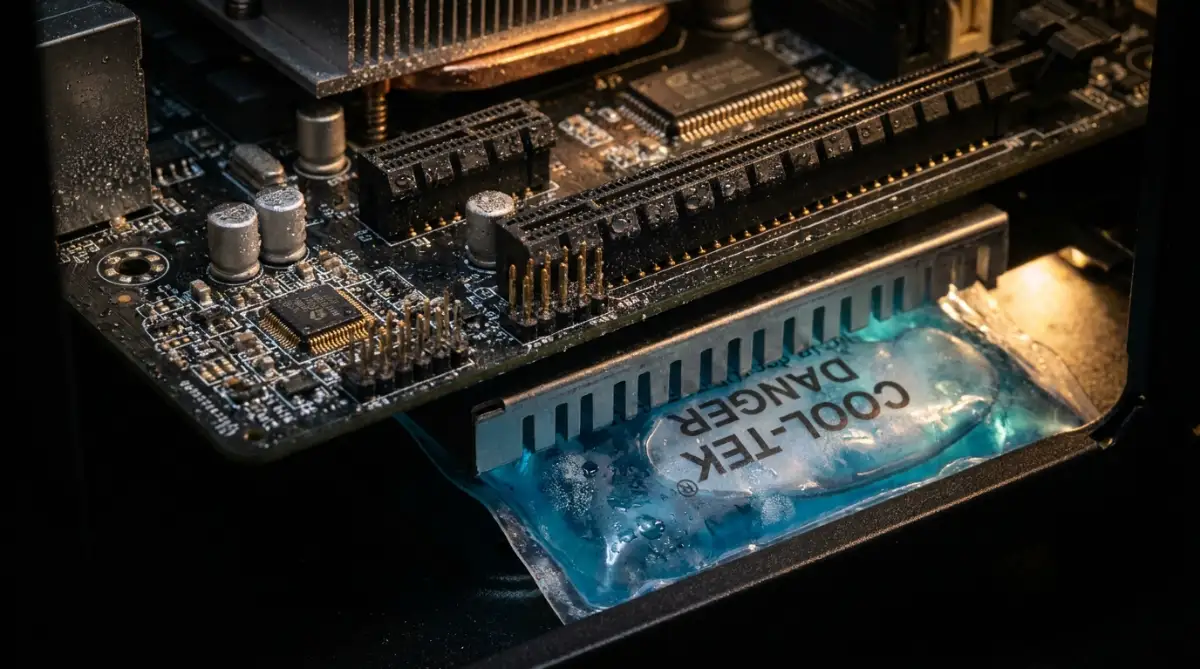
- Fact: Ice creates sudden condensation (water droplets) inside your computer, which will fry your motherboard instantly. Don't do it.
- Myth: I definitely need an expensive cooling pad with five LED fans.
- Fact: Just lifting the back edge of your laptop with two plastic bottle caps drops temperatures almost as much as a $50 cooling pad.
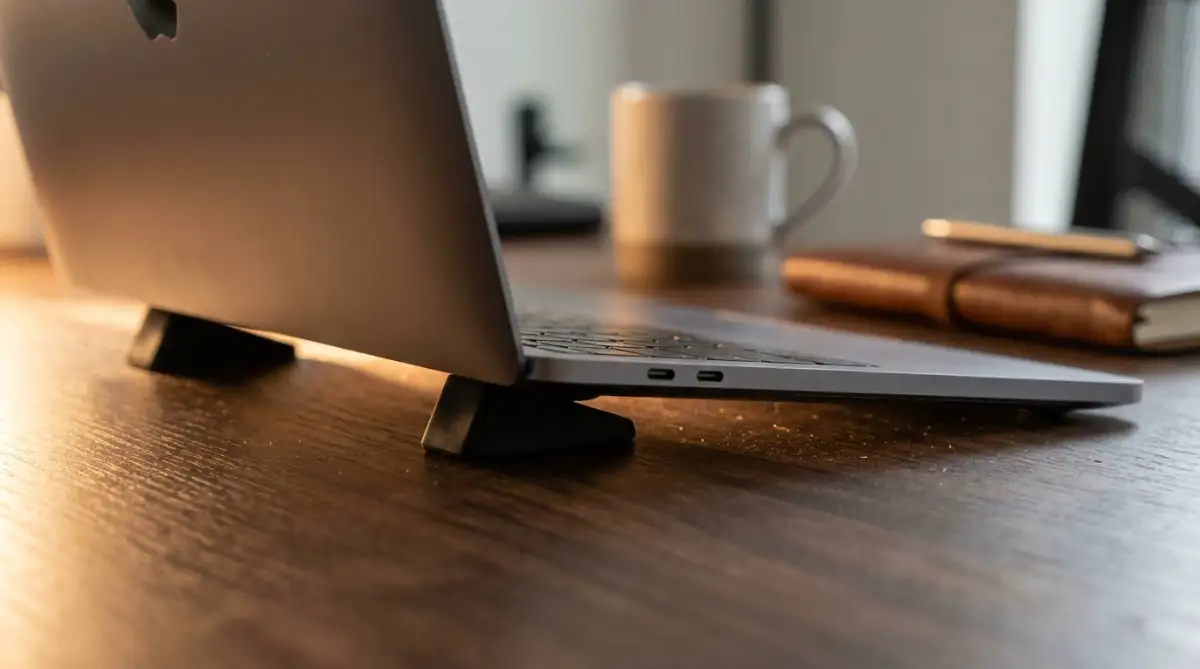
Think about how incredibly difficult it is for a person to breathe deeply while pressing their face hard into a thick pillow. Your expensive gadget is experiencing that exact same suffocating struggle when it sits entirely flat on a standard table. To instantly fix this, you just need to slightly lift the back edge of the computer off the surface.
You can easily prop up the back two corners using simple household items like two identical books or even two thick plastic bottle caps. By creating just one extra inch of open space underneath, you allow a massive rush of fresh air to enter the internal fans. This single physical adjustment can drop internal temperatures drastically within just five minutes. You will immediately hear the loud fans start to quiet down as the system finally catches its breath.
The Soft Surface Danger Zone
Many of us truly love the cozy idea of working directly from our comfortable beds or watching long movies on soft living room couches. However, placing your working computer on top of a soft blanket, a fluffy pillow, or even directly on your lap is a massive mistake. These thick, soft fabrics completely swallow the bottom intake vents, creating an instant vacuum where no fresh air can enter at all.
Even worse, blankets act as highly powerful thermal insulators, meaning they are designed specifically to trap heat. The heat coming out of your processor gets trapped directly against the fabric, bouncing straight back up into the sensitive motherboard. Soft fabrics are also completely full of tiny dust particles, pet hair, and loose lint.
When your computer is starving for air, the fans spin harder and end up sucking all that nasty bed dust straight inside. If you absolutely must work from your cozy bed, you have to create a hard barrier immediately. Place a thick wooden cutting board, a large hardcover textbook, or a dedicated hard lap tray directly under the machine to keep the vents entirely clear.
Managing Your Room's Physical Climate
Your computer uses the air immediately surrounding it to cool down its incredibly hot internal components. If the air inside your actual room is already burning hot, the computer fans are just blowing warm air directly onto a warm processor. You cannot logically expect your premium gadget to stay icy cold if your actual bedroom feels like a sweaty summer sauna.
Direct sunlight is a completely silent killer for sensitive digital electronics. If your desk sits right next to a bright window, the sun's powerful rays will literally bake the dark metal or plastic chassis of your device. Dark materials naturally absorb heat, turning your beautiful computer into a dangerous little oven.
Pro Tip: I used to work right next to my sunny apartment window because I absolutely loved the natural afternoon lighting. I quickly realized that direct sunlight was pushing my device's internal temperature to extremely dangerous levels, so I shifted my desk completely to the shaded side of the room. This tiny location change easily lowered my system heat by several degrees right away.
Watch this incredibly helpful breakdown to see exactly how poor airflow slowly destroys expensive laptop hardware over time.
Utilizing Simple External Wind Power
If you do not want to spend any extra money on a fancy electronic cooling pad, you can use things you already own. A standard, cheap desk fan sitting on your table can become an amazing weapon against extreme digital heat. You just need to point the regular fan so that it gently blows fresh air directly across the keyboard or underneath the propped-up bottom.
Many premium devices, specifically modern Apple MacBooks, use their entire solid metal body as one giant external heatsink. This means the heat naturally travels from the inside directly to the outer metal shell to escape into the room. When you point a small desk fan at this hot metal shell, the flowing air instantly pulls the heat away from the surface.
It is incredibly surprising how well this basic, low-tech solution actually performs during heavy computing tasks. You are actively moving the stagnant, hot air away from your personal workspace and replacing it with a fresh breeze. Just ensure the external fan is not blowing dust directly into your side ports or open vents.
Stop the Hidden Background Heavy Lifters
Sometimes the heat problem is not strictly about bad physical airflow; it is about exactly what your software is doing in the background. Every single program you open requires electrical power to run, and electricity physically generates heat as it travels through the tiny wires. If your machine is constantly overheating, you are likely forcing it to run way too many heavy tasks at the exact same time.
Most normal people have absolutely no idea what is silently running in the background of their computer. You might have three different cloud storage apps trying to constantly sync large files while you are just trying to type a simple essay. Google Chrome is famous for keeping dozens of open tabs constantly active, chewing up massive amounts of memory and processor power.
Open your system's built-in Task Manager or Activity Monitor and look strictly at the CPU usage column. Close any heavy, demanding applications that you are not actively using right this exact second. By simply closing ten unnecessary browser tabs and quitting a heavy chat app, you instantly reduce the electrical load and cool the system down.
Disconnect Unnecessary Power Drains
We often treat our computers like they are giant, unlimited wall outlets, plugging in everything we possibly can. You might have an external hard drive, a glowing mechanical keyboard, a gaming mouse, and a charging smartphone all connected at once. Every single device you plug into those side USB ports draws physical electricity straight through the main motherboard.
When the motherboard has to push extreme amounts of electrical current out to all these accessories, it gets very hot. This extra thermal stress adds up incredibly fast, especially if you are also playing a game or rendering a big video. The main battery also has to work significantly harder, generating its own layer of dangerous heat right under your wrists.
If you are currently experiencing a severe heat warning or massive performance lag, start unplugging things immediately. Disconnect your mobile phone and plug it directly into a standard wall charger instead. Remove any extra USB flash drives or external webcams that you are not actively using for your current project. Give your motherboard a much-needed break from acting like a massive power station.
Changing Power Settings to Reduce Strain
Your operating system comes with hidden settings that allow you to dictate exactly how hard the internal brain can work. By default, most machines are set to offer the maximum possible speed, which naturally generates the maximum possible heat. If you are just reading articles or watching a funny video, you absolutely do not need maximum gaming-level processor speed.
If you are using a Windows machine, you can easily click on your battery icon and select the "Battery Saver" mode, even while fully plugged into the wall. This simple action tells the system to slightly lower the electrical voltage going to the main processor. Less electricity passing through the chips directly equals less friction, which translates into a wonderfully cooler machine.
For Apple users, switching on the official "Low Power Mode" achieves the exact same brilliant result instantly. You probably will not even notice any speed difference during your normal, casual daily browsing. However, your internal fans will quickly slow down, and the keyboard will feel much more comfortable against your bare skin.
The Vacuum and Compressed Air Debate
Even if you keep your laptop perfectly elevated on a clean, solid desk, tiny dust particles will naturally gather inside over time. This dust coats the internal fan blades, making them heavy, slow, and completely terrible at moving fresh air. While you cannot open the case, you can still carefully clean the outside vents to improve basic airflow.
Many people grab a massive, powerful home vacuum cleaner and press it directly against their side vents. You must completely avoid doing this at all costs. Large home vacuums can easily create strong static electricity buildups that can instantly kill sensitive microchips upon contact. Instead, you want to use a small, cheap can of standard compressed air specifically designed for delicate electronics.
When using compressed air from the outside, you have to be extremely careful not to break the fragile fan. If you spray powerful air directly into the vent, the fan will spin way faster than it was ever designed to, ruining the internal bearings forever. To do this safely, gently stick a wooden toothpick slightly through the plastic vent to hold the fan blade completely still. Once the blade is securely locked in place, give the vent a few quick, light sprays to dislodge the stuck dust.
Mastering Advanced Hardware Temperature Control
Now that we have covered the basic physical adjustments, we need to look at exactly how your system behaves during heavy daily use. True long-term hardware health requires you to completely change how you interact with your digital tools. The most successful tech experts do not just react to a hot device; they actively build a daily workflow that prevents the heat from ever building up.
Your computer is basically a highly compressed engine, and just like a car, it runs much better when you do not constantly push it to the maximum limit. You can easily train your computer to run highly efficiently without constantly triggering those loud, annoying emergency fans. This requires a slight shift in your daily habits, but the massive reward is a silent, fast, and long-lasting machine.
Smart Task Scheduling for Cooler Workdays
One of the best expert secrets is simply changing the specific time of day you choose to run heavy applications. If you need to render a massive video file or export thousands of high-resolution photos, do not do it during the hottest part of your afternoon. The ambient temperature in your room is already fighting against your computer's natural cooling system during the middle of the day.
Instead, schedule these extremely heavy tasks for late evening or early morning when your room naturally feels much cooler. You can easily set up your system to handle these heavy processing loads while you are sleeping peacefully in another room. By learning how to automate repetitive daily tasks, your computer can work incredibly hard when the physical environment is most forgiving.
This smart scheduling completely removes the heavy thermal stress during your active working hours. When you finally sit down to type emails or attend meetings in the afternoon, your computer will feel icy cold and ready to respond quickly.
The Aluminum Heatsink Advantage
If you eventually decide to use a laptop stand to fix your posture, the material you choose makes a massive difference. Cheap plastic stands might hold your screen up high, but plastic is a terrible conductor of natural heat. The heat from your bottom vents will simply bounce off the plastic and travel right back into your sensitive motherboard.
You should always look for a solid aluminum or pure metal laptop stand if you want the best possible natural cooling. Aluminum acts as a giant passive heatsink, meaning it actively pulls the dangerous heat away from your device and absorbs it. According to detailed engineering reports on consumer electronics heat dissipation, using thermally conductive metals effectively doubles your natural cooling capacity without requiring any extra electricity.
When the metal stand gets slightly warm, that is actually a wonderful sign that the system is working perfectly. It means the heat is safely leaving your expensive gadget and transferring into the cheap metal stand instead. This simple material choice completely eliminates the need for loud, external cooling fans on your desk.
Managing External Monitor Heat Generation
Many remote workers love using massive external monitors to increase their daily productivity and see multiple windows at once. However, pushing millions of pixels to a giant 4K screen forces your internal graphics card to work incredibly hard all day long. This single action generates a massive amount of hidden heat right under your keyboard.
If your laptop starts screaming every time you plug in your secondary display, you need to adjust the display settings immediately. Open your main display preferences and lower the external monitor's refresh rate from 120Hz or 144Hz down to a standard 60Hz. Your eyes will barely notice the difference while reading simple text, but your graphics card will instantly stop working overtime.
You should also keep your primary laptop lid slightly open even when using an external screen. Many people close the lid and push the laptop into a dark corner, totally blocking the heat that naturally rises through the keyboard deck. Keeping the lid open just a few inches allows that trapped thermal energy to easily escape into the room.
Optimizing Browser Hardware Acceleration
We spend almost all of our working day completely inside a web browser, making it a primary suspect for sudden temperature spikes. Modern browsers like Chrome and Edge use a specific feature called "Hardware Acceleration" to make scrolling feel incredibly smooth. This feature forces your dedicated graphics card to handle simple web tasks, which can generate entirely unnecessary heat.
If you are just reading articles or sending text-based emails, you completely do not need your powerful graphics card to assist you. Dive into your browser's advanced settings menu and search for the hardware acceleration toggle button. Turning this feature completely off will force the browser to run on low-power mode, instantly dropping your machine's running temperature.
This simple software trick is especially helpful for people who strictly protect their online privacy as a remote worker using multiple heavy browser extensions. Extensions constantly scan your pages in the background, and removing hardware acceleration keeps that background activity from cooking your machine.

The Most Dangerous Heat Management Mistakes
When panic sets in over a freezing, overheating screen, people often try incredibly dangerous DIY solutions. Desperation easily clouds basic logic, leading perfectly smart people to do things that completely destroy their expensive electronics. These common mistakes usually seem like a brilliant idea in the moment, but they cause permanent internal damage that no warranty will ever cover.
The Terrifying Ice Pack Trap
I once saw a close friend grab a frozen gel ice pack from his kitchen freezer and place his expensive gaming laptop directly on top of it. He genuinely thought this was a genius life hack to force the internal temperature down instantly. Within thirty minutes, his entire computer completely shut off, refused to turn back on, and cost him hundreds of dollars in repair fees.
When you place freezing cold objects directly against warm electronics, it instantly creates physical moisture and condensation. Water droplets literally start forming inside the computer casing, dripping directly onto the highly sensitive electrical circuits. This moisture creates an immediate electrical short circuit, permanently frying the expensive motherboard in seconds.

You must never introduce extreme, artificial cold to a running digital device under any circumstances. According to official guidelines on energy-efficient computing, devices are strictly designed to cool down gradually using standard room-temperature air. Sudden, extreme temperature drops are just as highly dangerous as the actual overheating problem itself.
Charging Inside a Closed Backpack
This is a remarkably common mistake that happens when we are rushing out the door for a busy travel day. You realize your computer battery is completely dead, so you plug it into a portable power bank while leaving it zipped tightly inside your travel bag. You think you are saving valuable time, but you are actually building a highly dangerous thermal oven on your back.
As the battery rapidly absorbs power, it naturally gets incredibly warm, which is totally normal. But because the device is trapped inside a dark, insulated bag, that heat has absolutely nowhere to escape. The temperature builds up drastically, greatly increasing the risk of the internal battery actually catching on fire.
This same terrifying logic applies to the hidden dangers of charging devices overnight while they are resting under a soft pillow. You should strictly charge your electronics on hard, open surfaces where fresh air can freely circulate around the battery. Detailed research on lithium-ion battery thermal management strictly warns against charging large devices in completely unventilated spaces.
Ignoring the Grinding Fan Sounds
We naturally try to ignore small, annoying noises, hoping they will magically just go away on their own over the weekend. If your internal cooling fan starts making a loud grinding, clicking, or rattling sound, you cannot just turn up your music to ignore it. That specific mechanical noise means the physical fan bearing is actively breaking apart and failing to spin correctly.
When a fan bearing starts dying, the blades spin at a completely uneven angle, barely moving any fresh air at all. The fan might sound incredibly loud, but it is actually doing absolutely zero cooling work for the internal processor. Ignoring this massive warning sign almost always leads to a sudden, catastrophic heat shutdown while you are working.
If you hear grinding, you must immediately save all of your files and properly shut the machine down. It is highly recommended to start securing your personal files on cloud platforms the minute you hear strange hardware noises. A failing fan is one of the only times you should actually take the device to a qualified professional for a cheap hardware replacement.
Using the Wrong Cleaning Solvents
When people finally decide to clean their dusty vents, they sometimes reach for standard household cleaning sprays or wet wipes. They aggressively spray liquid glass cleaner directly onto the external air vents to make them look shiny and brand new. This liquid easily drips through the plastic holes and lands directly on the internal power connectors.
You must only ever use completely dry methods, like soft microfiber cloths or approved compressed air, to clean your computer. Any liquid, even highly pure rubbing alcohol, should be applied strictly to the cloth first, never directly to the machine itself. Your goal is just to remove the physical dust barrier, not to give the sensitive electrical parts a chemical bath.
This exact rule applies heavily when securing a smart home network and cleaning your household internet routers. Routers also rely completely on passive cooling vents, and spraying liquids on them will destroy your entire home internet setup instantly. Keep all wet household chemicals completely away from your expensive digital workspace.
Your Blueprint for a Cooler Digital Workspace
You now have a complete, totally safe toolkit to handle the terrifying moment your computer starts running too hot. You no longer have to feel completely helpless or rely on expensive repair shops for basic daily maintenance. By deeply understanding how air flows and how your software demands power, you firmly hold the keys to device longevity.
Taking proper care of your expensive gadgets does not require a deep background in advanced electrical engineering. It simply requires a little bit of daily mindfulness and a total refusal to suffocate your hard-working digital tools. Giving your technology room to breathe will completely reward you with years of fast, highly reliable, and delightfully silent performance.
Your Action Plan for Today:
- Immediately find two small, hard objects (like thick coasters) and permanently prop up the back edge of your daily computer.
- Close at least ten old browser tabs that you have not actually looked at since yesterday morning.
- Check your primary display settings and turn down the brightness by just twenty percent to save immediate battery heat.
I entirely ruined my very first college computer because I insisted on playing heavy video games with the machine resting deep inside my blankets. That extremely expensive mistake taught me everything I now know about respecting digital thermal limits and proper physical airflow. You now have the exact knowledge required to easily protect your own investments, so start making these small workspace adjustments today.
Common Questions About Laptop Heat Management
Does keeping my laptop plugged in all day cause it to overheat?
Modern computers are incredibly smart and automatically stop charging the internal battery the exact moment it hits one hundred percent. However, running heavy software while connected to the wall does generate more overall system heat than running purely on battery power. If your machine feels unusually hot, simply unplugging it for an hour can quickly help reduce that active thermal load.
Can a cheap cooling pad actually damage my computer?
Most cooling pads are completely safe, but very cheap ones might have fans that push air in the wrong direction. If your laptop pushes hot air out the bottom, and the cooling pad pushes air directly up, they will fight each other and trap the heat. Always ensure your external fans are helping the natural airflow direction, not fighting against it.
Why does my laptop get incredibly hot when watching simple videos?
High-definition video streaming actually forces your wireless network card and your graphics processor to work constantly to decode the signal. If you are watching 4K videos on a hot summer day, your system has to rapidly process massive amounts of visual data every second. Lowering the video quality to standard high definition (1080p) will instantly give your hardware a major break.
Is it completely safe to use a vacuum to clean my laptop vents?
No, you should never use a standard household vacuum cleaner directly on sensitive electronics. Large vacuums create massive amounts of invisible static electricity that can easily jump into the vents and destroy the motherboard instantly. You should strongly stick to short, careful bursts of canned compressed air instead.
At what specific temperature should I be worried about my device?
Most modern processors are designed to safely run anywhere between 40 and 80 degrees Celsius during a normal workday. If your system consistently stays above 90 degrees Celsius while doing basic web browsing, you have a severe cooling problem. When the metal casing actually becomes physically painful to touch with your bare hands, you must shut the system down immediately.
Disclaimer: The information provided in this article is for educational and informational purposes only and does not constitute professional IT or hardware repair advice. If your device continues to overheat dangerously or emit unusual burning smells, please power it off immediately and consult a certified manufacturer technician. This site may contain advertisements or links compliant with Google AdSense and various social media content policies.