How a Simple Coffee Shop Work Session Almost Ruined My Career
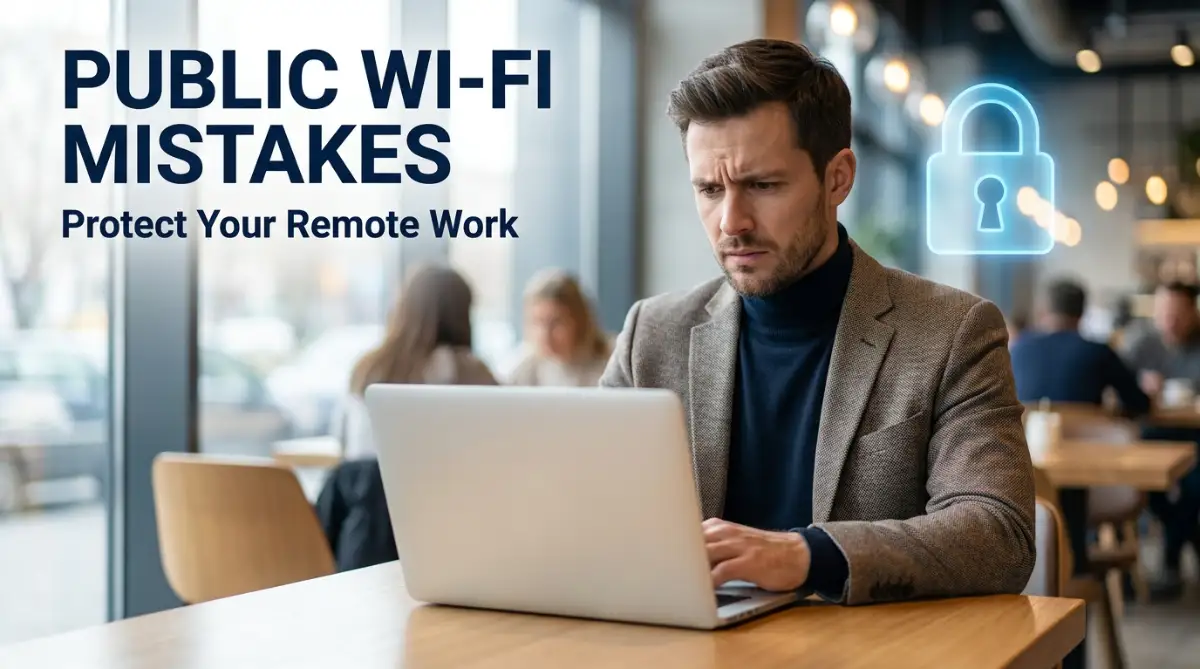
Have you ever connected to a cafe's free internet without thinking twice? I did that exactly once, and it nearly cost me my entire business. Sitting with my iced coffee, I watched my bank account log me out and a password reset pop up on my screen. That terrifying morning taught me exactly how public networks secretly steal your data, and I am going to show you how to lock down your laptop today.
Suddenly, my bank sent a notification to my phone about a large, strange transaction that I definitely did not make. Within seconds, my email account logged me out, and a password reset warning popped up on my screen. I froze entirely, realizing my entire digital life was being hijacked right in front of my eyes.
I was officially the victim of a local network attack, and the feeling of helplessness was absolutely terrifying. My heart pounded in my chest as I scrambled to shut down my laptop and call my credit card company.
This nightmare scenario happens to thousands of honest, hard-working people every single day. We rely on free internet connections at airports, hotels, and cafes to keep our remote jobs running smoothly.
But most of us are completely unaware that we are essentially handing our personal information to strangers. The daily stress of wondering if your client files, personal photos, or bank details are truly safe takes a massive toll on your mental health.
The good news is that you can completely stop this from happening to you with a few very simple adjustments. Let us walk through the exact steps you need to take to lock down your digital life, no matter where you choose to work.
Your 60-Second Security Action Plan:
- Turn off the "Auto-Join" Wi-Fi feature on your phone and laptop right now.
- Always ask the cafe staff to verify their exact network name to avoid fake hacker routers.
- Never check your bank balance on public Wi-Fi—switch to your cellular data instead.
- Turn off public file sharing so your laptop becomes completely invisible to other people in the room.
Breaking Down the Hidden Dangers of Open Networks
Working from a sunny cafe or a quiet library sounds like a dream for most remote workers. However, that freedom comes with a massive hidden cost if you do not understand how local connections actually operate.
The biggest problem is that we treat open networks with the same level of trust as our private home routers. We assume that just because a place looks friendly and professional, their internet service must be safe too.
This false sense of security is exactly what bad actors count on when they target busy remote workers. Let us explore exactly how these invisible traps work and how you can easily spot them before connecting.
The Danger of Auto-Connect and Silent Background Pings
Most smartphones and laptops are built to make our lives as easy and frictionless as possible. Because of this, they come with a default setting that automatically searches for and connects to familiar network names.
If you connected to an airport network once, your device will constantly scan the air for that exact same network name everywhere you go. This means your computer is constantly shouting out, "Is anyone here the airport network?"
Hackers use a very simple trick to take advantage of this helpful little feature. They set up tiny, portable routers in their backpacks that listen for these automatic background pings from your device.
When your laptop asks for the airport network, the hacker's router happily replies, "Yes, that is me, come connect!" Your device connects silently in the background without you ever clicking a single button.
Stopping the Silent Betrayal of Your Devices
To stop this from happening, you need to go into your device settings right now and turn off the auto-connect feature. You want to be completely in charge of when and where your computer decides to join a new connection.
Force your laptop and phone to ask for your permission before they jump onto any available local signal. This tiny barrier of friction is your first major line of defense against invisible attacks in crowded places.
When you sit down at a cafe, take ten seconds to manually select the connection you actually want to use. This conscious choice prevents your device from talking to dangerous strangers behind your back.
Spotting the "Evil Twin" Network Trap
One of the most common ways remote workers get tricked is through something called an "Evil Twin" attack. It sounds like something out of a science fiction movie, but it is actually a very simple and highly effective trick.
Imagine you walk into a coffee shop named "Sunny Beans Cafe" and open your network settings. You see a connection named "Sunny_Beans_Free_WiFi" and another one named "Sunny_Beans_Guest".
Most people will just click the first one that has a strong signal and start browsing the web. They do not realize that the hacker sitting in the corner created the "Guest" network just five minutes ago.
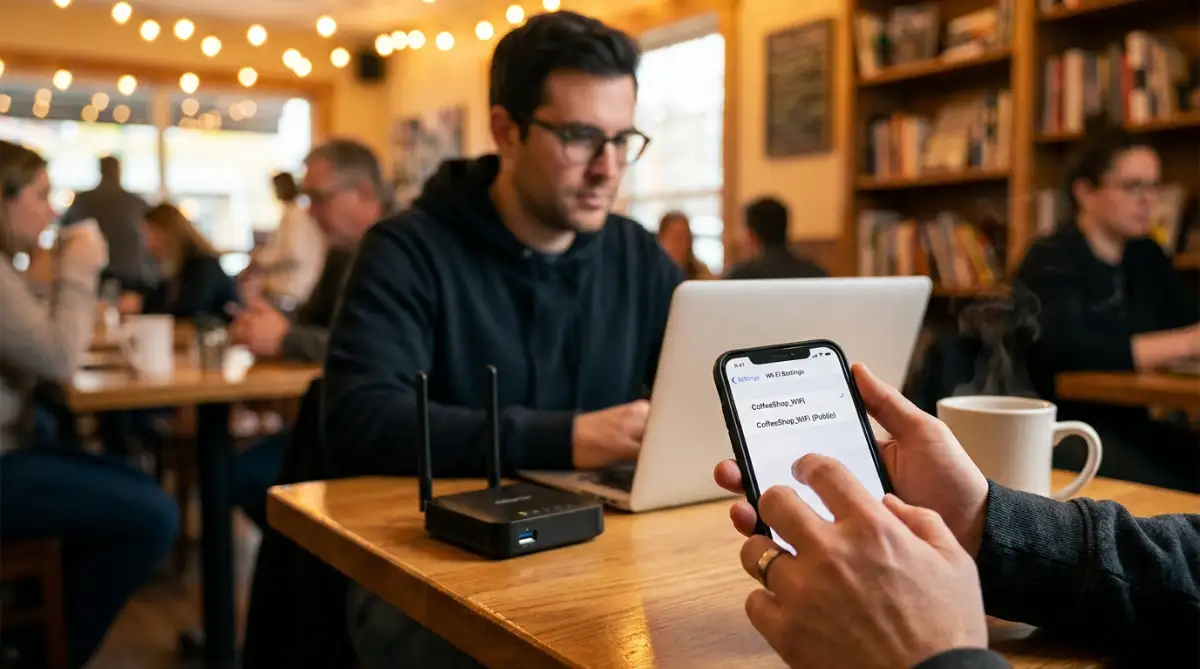
The hacker uses the exact same name as the real business to make you feel comfortable and safe. Once you connect to their fake twin router, every single website you visit passes directly through their computer first.
How to Verify the Real Deal
The easiest way to avoid this trap is to actually talk to the people working at the location. Walk up to the front counter and ask the barista for the exact name of their official network connection.
Do not feel shy about asking this question; it is completely normal and shows that you take your work seriously. If the staff tells you they only have one network, but you see three on your screen, you know a hacker is nearby.
Always look for a printed sign near the cash register that clearly states the official network name and password. If a connection is completely open and requires no password at all, you should treat it with extreme caution.
The "Ask the Barista" Script:
- You: "Hey, is your Wi-Fi called 'Cafe_Guest' or 'Cafe_Free_5G'?"
- Barista: "Actually, we only have one network, and it is 'Cafe_Secure'."
- Result: You just saved yourself from connecting to a hacker's fake router sitting in the corner! Never feel shy about asking this simple question.
My biggest mistake was assuming that password-free internet at a fancy hotel was automatically safe just because the room was expensive. I lost an entire morning of work trying to recover my locked email account after a hacker intercepted my session. Now, I always ask the front desk for the exact spelling of their secure network before I even open my laptop bag.
Understanding Why Encryption is Your Best Friend
When you send a text message or load a website, your computer sends out tiny packets of data through the air. If you are on an open network, those packets of data are completely visible to anyone who knows how to look.
Think of it like writing your most private secrets on a simple postcard and mailing it without an envelope. Anyone who handles that postcard along the way can easily read everything you wrote down.
When you are dealing with sensitive client files, passwords, or bank details, sending postcards is highly irresponsible. You need a way to put your data into a heavy steel lockbox before it leaves your computer.
This is exactly what encryption does for your daily internet traffic. It scrambles all of your plain text into a chaotic mess of random letters and numbers that nobody can understand.
Even if a bad actor manages to intercept your connection, they will just see absolute garbage instead of your passwords. Making sure your data is heavily encrypted is non-negotiable for anyone working outside of a standard office.
The Magic of Using a Virtual Private Network
The absolute best tool for scrambling your data on the go is a Virtual Private Network. You have probably heard this term thrown around in tech videos, but you might not realize how incredibly simple they are to use.
A Virtual Private Network creates a secure, encrypted tunnel between your computer and the rest of the internet. It acts like a trusted middleman that protects your identity and hides your exact location from everyone around you.
When you turn it on, the local cafe network can no longer see what websites you are visiting. They only see that you are sending locked boxes of encrypted data to a remote server somewhere else.
Setting Up Your Secure Digital Tunnel
Many remote workers avoid using these tools because they think they require a degree in computer science to operate. In reality, modern applications are as simple as opening an app on your phone and clicking one large "Connect" button.
If you want to see exactly how to secure your connection in under a minute, watch this quick breakdown.
You should make it a strict personal rule to never touch a public internet connection without turning on your secure tunnel first. It is the single most effective way to block people from snooping on your daily professional activities.
There are plenty of highly respected, premium services available that cost less than a cup of coffee per month. Investing in a good one is essentially buying a heavy-duty padlock for your entire remote career.
Cost of a VPN vs. Cost of Getting Hacked
| The Tiny Investment | The Hidden Cost of Doing Nothing |
| :--- | :--- |
| Around $3 to $5 per month | Hundreds of dollars lost in bank fraud |
| 1-minute daily setup time | Days spent recovering locked email accounts |
| Complete peace of mind | Constant stress about stolen client files |
Shutting the Digital Front Door to Your Computer
When we work in an office or at home, we often share files directly with other computers on our local network. Features like network discovery and file sharing make it very easy to send a document to the printer down the hall.
These features are incredibly convenient when you are surrounded by people you completely trust. However, leaving these features turned on in a public space is like leaving the front door of your house wide open.
If your laptop is actively broadcasting its name and looking for other devices to share files with, hackers will happily accept the invitation. They can use these open sharing ports to quietly drop malicious files onto your hard drive while you are distracted.
Making Your Device Completely Invisible
Before you leave your house, you need to go into your system settings and turn off all public file sharing options. If you use a Mac, make sure your AirDrop setting is restricted to "Contacts Only" instead of "Everyone".
If you use a Windows machine, make sure you mark any new coffee shop connection as a "Public Network" when prompted. This automatically tells your computer to hide itself from other devices sitting in the same room.
You want your laptop to be a digital ghost when you are working in crowded public areas. Nobody sitting next to you should even know your computer exists on the local network.
Taking two minutes to disable network discovery gives you a massive shield against unauthorized access to your private folders. It is a tiny habit that pays massive dividends in protecting your online peace of mind.
The Illusion of HTTPS and Secure Websites
We have all been taught to look for the tiny padlock icon next to a website address in our browser. This icon means the website uses HTTPS, which securely encrypts the communication between you and that specific website.
For a long time, experts said that as long as you see the padlock, your data is perfectly safe. Unfortunately, bad actors have gotten much smarter, and that tiny padlock is no longer a complete guarantee of safety.
Hackers can now perform attacks that actually force your browser to downgrade to an older, unencrypted version of a website. You might type in a secure address, but the hacker's fake router silently redirects you to an unsecured clone.
If you are not paying close attention, you might enter your password into a page that looks identical to your bank. The hacker instantly captures your login details because the secure HTTPS connection was silently stripped away.
You must constantly check the address bar when handling extremely sensitive information outside of your home. If a website you use every day suddenly looks slightly different or loads very slowly, close the browser immediately.
Never ignore the big red warning screens that your browser shows when a website certificate is invalid. Those warnings are specifically designed to stop you from handing your passwords directly to a local attacker.
Building an Unbreakable Digital Shield on the Go
Knowing the basic dangers of open networks is a great start, but true professionals take things a step further. When you rely entirely on your laptop to make a living, you cannot afford to leave any doors unlocked.
The smartest remote workers build specific daily habits that keep their data completely invisible to local threats. Let us look at some advanced, highly practical strategies you can use to protect your digital workspace effortlessly.
Swapping Free Wi-Fi for Cellular Hotspots
The single most effective way to beat public network hackers is to completely avoid playing their game. Relying on a random cafe connection is always a gamble, no matter how nice the shop looks.
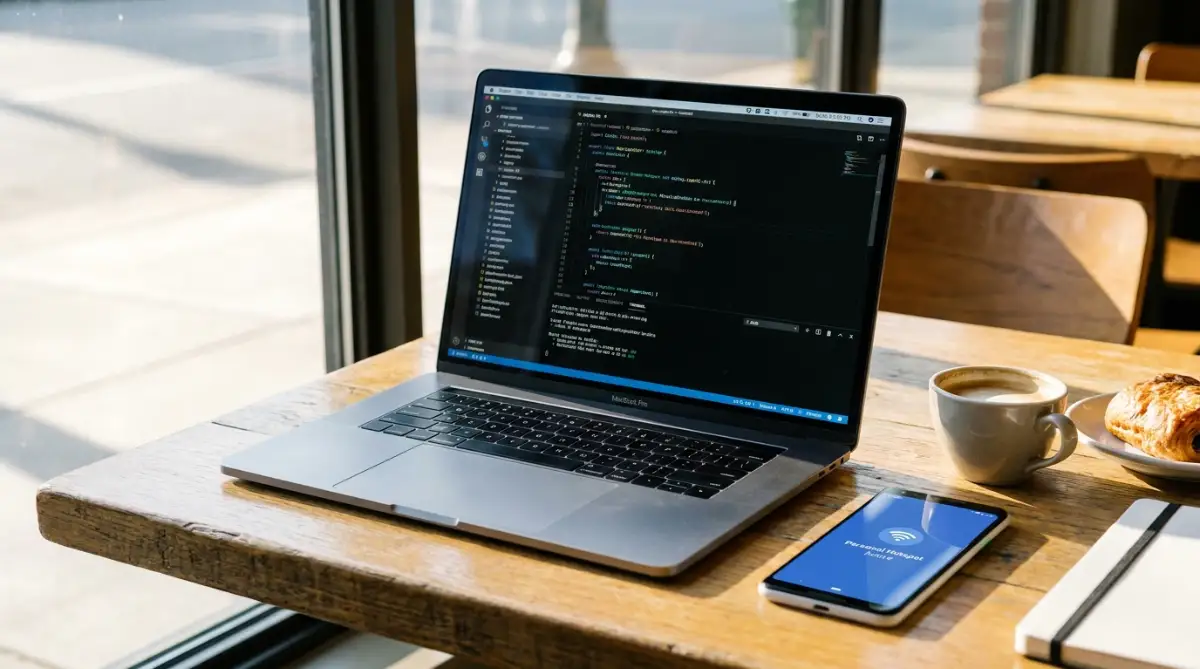
Instead of rolling the dice, you should make a habit of tethering your laptop directly to your smartphone. When you use your cellular data as a personal hotspot, you are utilizing a naturally encrypted connection provided by your mobile carrier.
This creates a closed loop between your phone and your computer that local hackers cannot easily access. It is like hiring a private, armored courier to deliver your messages instead of shouting them across a crowded room.
If you ever find yourself dealing with unstable internet drops in remote locations, a strong cellular data plan will literally save your workday. The peace of mind you get from owning your personal connection is worth every single penny.
Locking Accounts with Hardware Security Keys
Even if a bad actor manages to steal your password over an open network, you can still stop them in their tracks. Most people use text messages for two-factor authentication, but text messages can easily be intercepted.
Top-tier security experts recommend moving away from phone numbers and using physical security keys instead. These are tiny USB devices that you plug directly into your laptop when logging into important accounts.
According to guidelines published by the Cybersecurity & Infrastructure Security Agency (CISA), using phishing-resistant multi-factor authentication is one of the strongest defenses against account takeovers. If a hacker in another country guesses your password, they still cannot access your email because they do not have the physical key sitting on your desk.
This simple piece of metal acts as an absolute physical barrier against digital thieves. It guarantees that nobody can log into your payment gateways or client folders unless they are physically sitting next to you.
Creating Strict Browser Profiles for Client Work
When we mix our personal browsing with our professional work, we create massive vulnerabilities. You might click a funny link a friend sent you, accidentally exposing the same browser you use to handle sensitive client databases.
To fix this, you should set up completely separate browser profiles on your main computer. Create one strict profile specifically for work, loaded with heavy privacy extensions and strict security rules.
Use a completely different browser profile for watching videos, reading blogs, and logging into your personal social media. This simple separation prevents dangerous tracking scripts from following you into your secure work environments.
By aggressively blocking invasive tracking cookies on your work profile, you ensure your client data remains completely isolated. If your personal browser accidentally hits a compromised website on a public network, your professional accounts remain safely locked away in their own bubble.
The Silent Traps That Destroy Remote Careers
Even smart professionals can easily fall into dangerous traps when they are tired, stressed, or rushing to meet a deadline. The biggest problem with network security is that you rarely know you made a mistake until the damage is already done.
When a hacker slips into your system, they do not announce their arrival with loud alarms. They quietly sit in the background, collecting your keystrokes and downloading your personal files while you drink your coffee.
Making a single wrong move on an open network can cost you thousands of dollars and completely ruin your professional reputation. Let us explore the most devastating mistakes people make so you can instantly recognize them in the real world.
The "Just Checking My Bank Quickly" Trap
Picture this very common scenario: you are waiting for a flight at a busy airport terminal. You connect to the free airport Wi-Fi just to kill some time while sitting at the boarding gate.
Suddenly, you remember you need to pay a credit card bill, so you open your banking app for "just a minute." That single minute is all a local hacker needs to intercept your session and steal your login credentials.
Many people falsely believe that short internet sessions are somehow safer than long ones. The truth is, automated hacking software can capture your passwords in milliseconds.
The Federal Trade Commission (FTC) strongly warns consumers to never access personal financial data on open Wi-Fi hotspots. You should never, under any circumstances, type financial passwords into a device while connected to a shared public signal.
If you absolutely must check a bank balance while traveling, turn off your Wi-Fi entirely and switch back to your cellular data. That tiny moment of inconvenience is a cheap price to pay to keep your hard-earned money safe.
Ignoring Captive Portal Terms and Conditions
When you connect to a hotel or cafe network, you often get redirected to a pop-up page asking for your email address. These are called captive portals, and they usually feature a massive "Accept Terms" button at the bottom.
Most people are so desperate to get online that they instantly click accept without reading a single word. By doing this, you might be legally agreeing to let the network owner monitor your daily web traffic.
Some aggressive marketing companies provide free Wi-Fi routers to small cafes specifically to harvest visitor data. They track every website you visit and sell that behavioral profile to the highest bidder.
While you are busy handling tight client deadlines while traveling, these companies are quietly profiting from your private habits. Always read the fine print on these splash pages, and never provide your primary work email to access a free internet connection.
Running Software Updates in Public Spaces
Your laptop frequently pops up with annoying reminders to update your operating system or daily applications. It is incredibly tempting to just click "Update Now" while you are enjoying a long afternoon at a local bakery.
This is actually one of the most dangerous things you can do on an open connection. Hackers can intercept these software update requests and secretly replace the official download file with a malicious virus.
You think you are downloading a helpful security patch from Apple or Microsoft. In reality, you are voluntarily installing ransomware that will lock you out of your own hard drive within minutes.
Always wait until you are completely secure at home before you agree to download large software packages. Making sure you know how to protect your data in cloud environments means never trusting a public network to deliver safe system files.
Believing the "Incognito Mode" Myth
There is a massive misconception about what private browsing or "Incognito Mode" actually does for your safety. Many remote workers mistakenly believe that opening a dark browser window makes them invisible to hackers.
Private browsing only stops your computer from saving your search history to your local hard drive. It does absolutely nothing to encrypt the data leaving your device or hide your activity from the network owner.
If you are using Incognito Mode on a coffee shop network, the cafe owner can still see exactly what websites you load. A hacker sitting next to you can still read every single plain-text password you type into the browser.
Do not rely on this feature as a security blanket when working in public spaces. It is a helpful tool for keeping your own computer tidy, but it offers zero protection against external network threats.
Your Next Steps for a Stress-Free Remote Life
Taking your work outside of a traditional office is one of the greatest freedoms you can ever experience. You deserve to enjoy that freedom without constantly looking over your shoulder for digital threats.
Securing your daily workflow does not require you to become a computer programmer or a cybersecurity expert. It simply requires a healthy dose of skepticism and a willingness to build a few small friction points into your day.
By turning off auto-connect features, questioning every network name, and utilizing strong encryption tunnels, you instantly become a hard target. Hackers are fundamentally lazy; they will always skip past your heavily locked device to target the person sitting next to you who left their digital doors wide open.
Building these habits today ensures that your private life stays private, and your professional reputation remains spotless. Taking the time to master the right daily data security habits is the ultimate investment in your long-term remote career.
I know how overwhelming all this technical jargon can feel when you first start working remotely. My own terrifying experience with a hacked account forced me to finally take my digital safety seriously, and it completely changed how confidently I travel today. If you start treating every public network like a crowded room full of strangers, I promise you will never have to stress about a stolen password ever again!
Everyday Questions About Remote Connection Safety
Is it safe to check my bank account on public Wi-Fi?
No, it is highly unsafe to check your bank balance on an open network. Even with banking apps, a compromised local router can capture your sensitive login details. You should always switch strictly to your cellular data before opening any financial applications.
Does using my phone's cellular data protect me better than Wi-Fi?
Yes, cellular data networks use heavy built-in encryption protocols managed by your mobile provider. It is significantly harder for a local hacker to intercept a 5G connection compared to a standard local wireless signal. Using your phone as a hotspot is always the safest option when working in public.
If a cafe has a password on their network, is it fully secure?
Not necessarily. While a password keeps random people outside the cafe off the network, anyone sitting inside with the password can still snoop on your traffic. If a bad actor buys a coffee and gets the password, they can still target other users sharing that exact same connection.
Will using an encrypted tunnel slow down my video calls with clients?
It might slightly reduce your top speed, but modern premium services are highly optimized for fast video streaming. The tiny drop in speed is completely unnoticeable during regular Zoom calls or daily email tasks. The massive boost to your privacy is easily worth a fraction of a second in loading times.
Can hackers access my files if I just connect to Wi-Fi without opening a browser?
Yes, if your computer has open file sharing or network discovery turned on, they can see your device immediately. Background applications often communicate silently without you opening a browser window. This is why you must mark public connections as "Public" in your system settings to hide your hard drive completely.
Disclaimer: The information provided in this article is for educational and informational purposes only. It does not constitute professional cybersecurity or legal advice. While we strive to provide highly accurate and up-to-date security practices, the digital landscape changes rapidly. Always consult with a certified IT professional to ensure your specific business devices and networks are properly protected against current threats.