
The Frustrating Reality of Frozen Gadgets in Winter
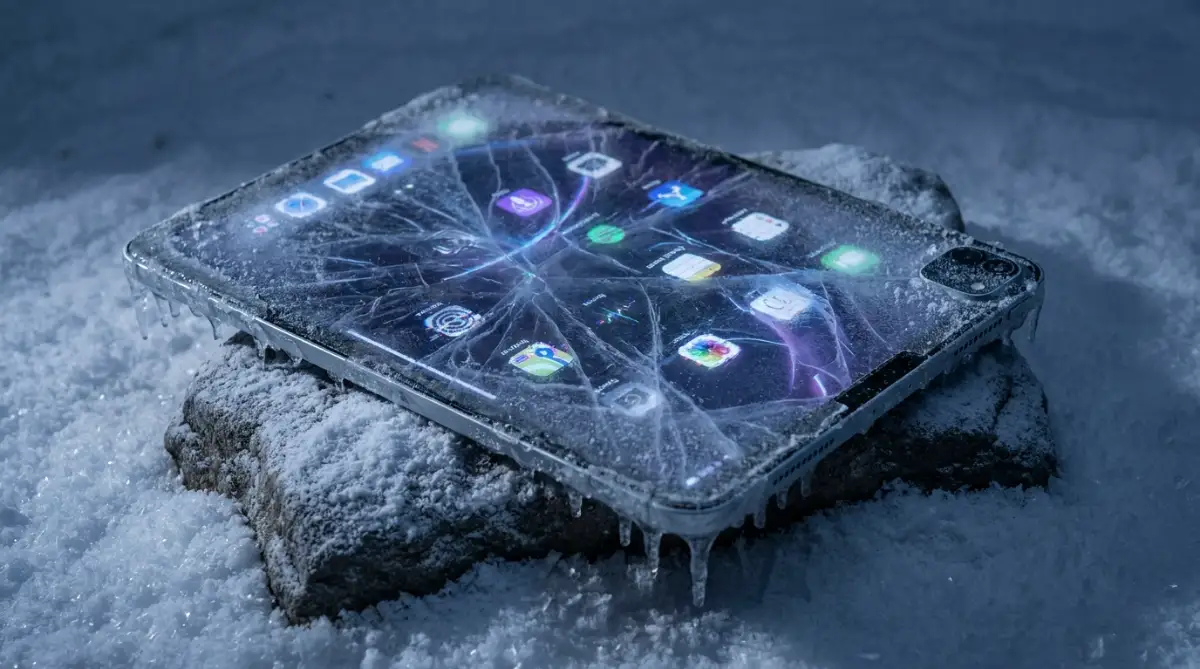
You step out into the freezing cold, pull out your phone to check a message, and... nothing. The screen is completely dead to your touch. Before you panic and assume your expensive gadget is permanently broken, take a breath. It is probably just a simple scientific glitch reacting to the cold air. Let's look at why this happens and how you can fix it right now without spending a dime.
It is incredibly annoying when you spend a huge amount of money on a premium gadget, only for it to fail during a simple outdoor task. People everywhere experience this exact nightmare during the freezing winter months. You might be waiting for a ride-share in the falling snow, repeatedly tapping a screen that acts completely dead.
Many people immediately blame the phone brand or assume their device is permanently broken. They worry about expensive repair costs or think they need to buy a brand-new model. The mental stress of being disconnected from family or work in bad weather is overwhelming.
However, your device is probably not broken at all. There is a very specific physical reaction happening between your fingers, the environment, and the glass layer of your gadget. Understanding this reaction is the first step to keeping your digital life running smoothly.
What You Need to Know (At a Glance)
- Your phone screen is likely not broken; it just cannot sense dry, cold fingers.
- Sudden temperature changes (like blowing car heaters) can permanently destroy your phone's motherboard with moisture.
- Keeping your gadget in an inside coat pocket is the absolute easiest way to prevent battery shutdowns.
- Heavy-duty industrial styluses work way better than standard "touchscreen gloves" in freezing weather.
The Hidden Science Behind Unresponsive Displays
To fix this annoying problem, we first need to look at how modern displays actually register your fingertips. Almost every premium gadget today uses something called a capacitive touchscreen. This technology does not rely on pressure.
Instead, capacitive screens rely on the natural electrical current running through your human body. Your phone screen projects a very weak, invisible electrical field across the glass. When your finger touches the glass, it absorbs a tiny bit of that electrical charge.
The processor inside your gadget detects that exact drop in electrical current. It then calculates the exact coordinates of your finger and registers the tap. Under normal conditions, this happens in milliseconds, making the screen feel incredibly fast and fluid.
How Sub-Zero Air Breaks the Connection
When extreme cold weather hits, this perfect electrical relationship falls apart completely. Cold air holds significantly less moisture than warm air. This creates a very dry environment that directly affects your skin.
When your skin becomes extremely dry, it loses its natural ability to conduct electricity efficiently. Without enough moisture, your fingertips simply cannot draw enough electrical charge from the glass. The screen thinks you are touching it with a piece of plastic or wood, so it ignores the input.
Quick Fix: The 5-Second Screen Test
If your screen freezes in the cold, try this checklist before giving up:
- Wipe it down: Quickly clean off any microscopic ice or condensation on the glass.
- Warm your hands: Just rubbing your bare hands together for 10 seconds adds enough natural moisture back to your skin to trigger the touch sensor.
- Tap a physical button: Pressing your volume or power button sometimes wakes the processor up from its sluggish state.
Pro Tip: I learned this the hard way after missing a very urgent business call during a ski trip. My biggest mistake was keeping my phone in the outer pocket of my winter coat where the cold air easily penetrated the fabric. Now, I always keep my device in an inside pocket close to my body heat, and the screen response stays perfectly smooth.
The Problem With Thick Winter Gloves
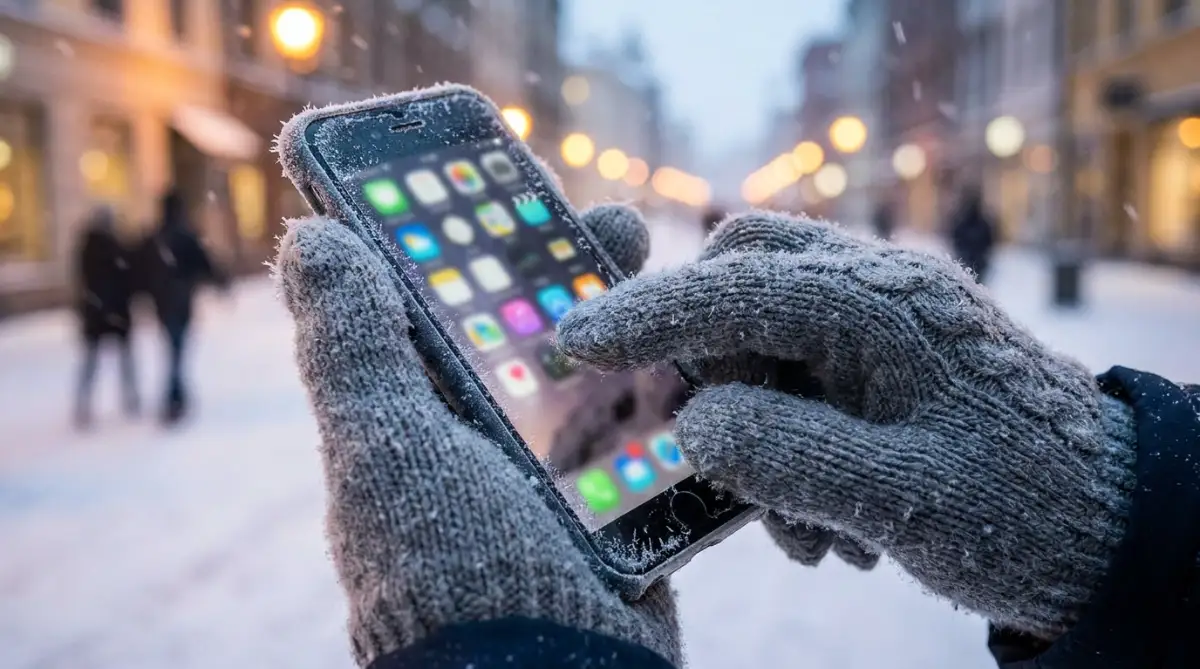
Many people try to solve this freezing issue by buying touchscreen-compatible gloves. These gloves have special conductive threads woven into the fingertips. In theory, they should transfer your body's electricity to the screen.
However, in extremely low temperatures, even these specialized gloves start to fail. The thick material creates too much distance between your actual skin and the glass surface. The cold air also cools down the conductive threads, reducing their efficiency.
Understanding Display Technologies: LCD vs. OLED
Not all premium screens react to low temperatures in the exact same way. The type of display technology your gadget uses plays a major role in its winter performance. Let us look at the two most popular types of screens on the market.
The LCD Struggle
Liquid Crystal Displays (LCD) literally contain a thin layer of liquid-like material. When the temperature drops significantly, this liquid becomes thick and sluggish. This physical change causes severe ghosting, where images drag across the screen when you swipe.
If it gets cold enough, the liquid crystals can freeze completely. This results in dead pixels, heavily delayed touch response, or a screen that simply stays completely black. Many older tablets and secondary displays still use this technology.
The OLED Advantage
Premium flagship phones usually feature OLED or AMOLED displays. These screens do not use liquid crystals. Instead, they use individual organic light-emitting diodes that light up independently.
Because there is no liquid layer to freeze, OLED screens generally handle cold weather much better than LCDs. However, they are still victims of the dry-skin capacitive issue mentioned earlier. Even if the OLED screen itself is perfectly fine, it will not register a dry, freezing finger.
The Battery Voltage Drop Effect
There is another massive factor that ruins your touch experience, and it happens deep inside the device. Lithium-ion batteries absolutely hate cold weather. Low temperatures slow down the chemical reactions inside the battery cells.
When the chemical reaction slows down, the battery cannot deliver enough voltage to the processor. To prevent a sudden shutdown, your gadget intentionally slows down its performance. This is called thermal throttling.
When the processor slows down, the touch sampling rate also drops heavily. You might tap an app icon perfectly, but the sluggish processor takes three times as long to process that command. This makes the screen feel totally unresponsive, even if your finger is warm.
Why Your Phone Suddenly Dies in the Cold
Have you ever checked your phone to see a 40% battery charge, only for it to instantly drop to 1% and shut off? This happens because the cold tricks the battery sensors. The voltage drop makes the software think the battery is completely empty.
Once you bring the phone back into a warm room, the chemical reactions return to normal. Suddenly, your battery magically shows 40% again. This false reading is a direct cause of a laggy, unresponsive interface.
Battery Drain Reality Check
| Where You Are | What the Battery Says | What the Actual Power Level Is |
| :--- | :--- | :--- |
| Just walked outside | 45% (Normal) | 45% (Everything is fine) |
| Outside for 20 mins in the snow | 12% (Red warning level) | Usually bounces right back to 40% indoors |
| Phone shuts off entirely | 0% (Dead screen) | Often around 30% once the phone thaws out safely |
Takeaway: Do not panic if your phone dies in the snow. It is just playing dead to protect its internal parts.
Video Breakdown: Gadgets in Extreme Weather
Watching this scientific process happen in real-time makes it much easier to understand. Check out this amazing video below that perfectly demonstrates how quickly a premium smartphone shuts down its touch sensors in a freezing environment.
Real-Life Scenarios: Why Your Gadget Needs Heat
Imagine you are trying to take a beautiful photo of a snowy mountain. You pull out your premium device, line up the perfect shot, and hit the shutter button. Nothing happens.
You start pressing harder, thinking physical pressure will force the button to work. This is a very common mistake that can actually damage the glass. Pressing harder does not increase electrical conductivity; it just puts stress on the delicate digitizer below the screen.
The digitizer is the exact component responsible for reading your touch inputs. When exposed to freezing temperatures for too long, the adhesive holding the digitizer to the glass can actually become brittle. Repeated hard presses in this state can cause invisible micro-cracks.
Myth vs. Reality in Cold Weather Tech
There is a lot of bad advice floating around the internet regarding winter gadget care. Let us clear up some of these confusing concepts right now.
Myth: Breathing heavily on your fingers will instantly make the screen work again.
Reality: While breathing on your hands adds a tiny bit of moisture, the freezing wind instantly turns that moisture into cold condensation. This can actually make your fingers colder and less conductive.
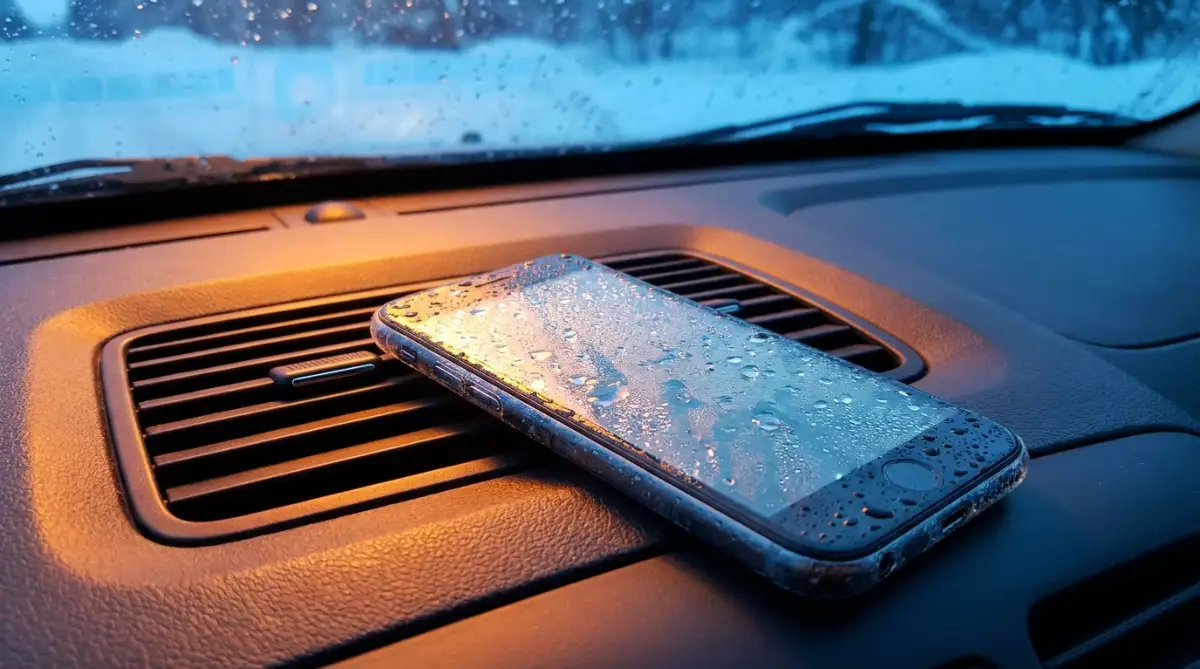
Myth: Putting a freezing phone directly on a heater is the fastest way to fix the touch lag.
Reality: This is incredibly dangerous. Rapid temperature changes cause internal condensation. Water droplets will form inside the motherboard, permanently destroying your expensive gadget.
Myth: Removing your screen protector will improve touch sensitivity in the snow.
Reality: A standard thin glass protector has a very minimal impact on electrical capacitance. Removing it leaves your cold, brittle screen completely exposed to physical drops on hard ice.
How Static Electricity Complicates Things
Winter weather creates the perfect storm for static electricity. You are often wearing heavy wool coats, fleece sweaters, and thick synthetic scarves. As you walk, these materials rub together and build up a large static charge on your body.
When you reach for your phone, that static charge can interfere with the delicate electrical field of the capacitive screen. Sometimes, the screen registers "phantom touches" where apps open by themselves. Other times, the static noise completely blocks your actual finger taps.
To fix this specific issue, you simply need to discharge the static from your body. Try touching a metal pole, your car door, or a set of metal keys before handling your device. This quickly resets your electrical baseline and helps the touchscreen recognize you again.
A Quick Comparison: Gadget Performance by Temperature
To give you a better idea of what to expect, here is a simple breakdown of how devices react at different temperature levels.
This table shows exactly why tech companies always list official operating temperatures in their user manuals. Pushing your device beyond these limits is entirely at your own risk.
Why Software Updates Cannot Fix This
Many users head straight to their settings menu, hoping a quick software update will solve their winter touch problems. They complain on user forums, demanding that tech brands release a patch for the screen lag.
Sadly, software cannot rewrite the laws of physics. The issue lies entirely in the hardware materials and environmental chemistry. A software update cannot add moisture to your dry skin or heat up a freezing lithium-ion battery cell.
Some manufacturers do include a "Glove Mode" or "High Sensitivity" setting in their display options. Turning this on simply amplifies the electrical field projected by the glass. It might help slightly in mild cold, but it is useless in extreme freezing conditions.
The Impact of Ambient Humidity
We already established that cold air is extremely dry. But we should also talk about ambient humidity levels. In regions with freezing dry winds, touch screens fail much faster than in areas with heavy, wet snowfalls.
If there is a slight amount of moisture in the air, your skin retains just enough conductivity to keep things working. This is why a person skiing in dry mountain air struggles more than someone walking through a wet, slushy winter storm.
You can actually use an enriching hand lotion to artificially boost your skin moisture. A tiny amount of water-based moisturizer applied to your fingertips can restore the electrical connection. Just make sure your hands are completely dry before touching the glass, so you do not leave greasy smudges everywhere.
Smart Winter Strategies to Keep Your Screen Alive
We already know exactly why your expensive device fails when the temperature drops. Now, it is time to look into some highly effective strategies that actually work in real life. These are the exact methods professional winter athletes and outdoor workers use to keep their screens highly responsive. You do not need technical skills to apply these tricks, just a bit of smart planning.
The most effective trick I have ever used is something I call the "Inner Layer Rule." Most of us naturally drop our phones into the deep outer pockets of our heavy winter jackets. This is a massive mistake because those outer layers stay freezing cold. You need to store your device in an inside chest pocket, right against your sweater or shirt.
Your natural body heat creates a micro-climate inside your jacket that keeps the battery warm. This simple change completely stops the processor from slowing down due to voltage drops. When you pull the phone out to use it, the screen is already at an optimal operating temperature.
If your winter coat does not have inside pockets, you should look into buying a thermal tech pouch. These are small, insulated bags made from the same materials used in extreme cold weather survival gear. They trap the residual heat of the device and block freezing winds from hitting the glass.
The Hidden Power of Industrial Styluses
You might think styluses are only for digital artists, but they are incredibly useful in freezing weather. Regular touchscreen gloves often fail because they simply cannot conduct enough electricity from dry, cold skin. An industrial capacitive stylus completely bypasses this annoying human limitation.
These heavy-duty styluses are designed specifically for warehouse workers who operate in massive commercial freezers. They have thick, highly conductive rubber tips that perfectly mimic the electrical charge of a warm human finger. You can keep your thickest wool gloves on and still tap out a text message effortlessly.
I actually started carrying a small capacitive pen whenever I travel for work during the snowy season. When you are packing a healthy remote setup in a small suitcase, a small stylus takes up zero space but saves you so much frustration. It is amazing how such a simple tool completely solves the frozen screen nightmare.
Hydration and Your Digital Life
You need to actively maintain your skin's moisture barrier before heading out into the snow. Experts always recommend maintaining healthy skin moisture during extreme winter conditions to prevent painful cracking. Applying a lightweight, water-based hand lotion adds just enough moisture to keep your fingers electrically conductive.
Just be sure to let the lotion dry completely before you start swiping on your expensive gadget. You definitely do not want to leave greasy, oily smudges all over your camera lens. A well-moisturized hand will trigger a touchscreen instantly, even if the air around you is freezing.
Tweaking Your Accessibility Settings
Your phone has a secret menu designed specifically for people with physical limitations, and it is perfect for winter. When your fingers are cold and clumsy, hitting small keyboard buttons feels impossible. Navigating to your accessibility settings can temporarily make everything much easier to tap.
You can increase the touch duration time, which means the phone will wait a fraction of a second longer to register a clumsy tap. You can also temporarily increase your display scaling, making every app icon and text box much larger. Hitting a massive button with a cold thumb is significantly easier than trying to precisely tap a tiny dot.

Disastrous Errors That Will Permanently Ruin Your Display
Trying to quickly fix a frozen phone often leads to panic, and panic leads to terrible decisions. People do incredibly dangerous things to their gadgets just to send a quick text message. Understanding what not to do is just as important as knowing the right solutions. Let us walk through the most destructive mistakes you can easily avoid.
The Dashboard Heater Death Trap
This is arguably the most common and expensive mistake people make every single winter. You get into your freezing car, start the engine, and blast the hot air from the dashboard vents. Then, you place your completely frozen smartphone directly in front of that blowing heat.
This causes immediate thermal shock, which forces heavy condensation to form deep inside the device. Water droplets literally materialize on your internal motherboard, causing a massive short circuit. NASA has heavily documented the dangers of thermal shock, constantly testing aerospace-grade thermal shock prevention methods to protect sensitive electronics.
Once water damage happens internally, your screen might turn green, flicker wildly, or just die completely. If your phone gets completely ruined this way, you might even have trouble safely wiping data from your premium gadgets before sending it for recycling. Always let your device warm up naturally at room temperature in your pocket.
The Desperate Screen Smashing Habit
When an app refuses to open, human nature tells us to just press harder. We start stabbing at the glass with our thumbs, hoping physical pressure will force the software to wake up. This is a terrible idea because capacitive screens do not care about physical force at all.
Cold temperatures actually change the molecular structure of tempered glass, making it incredibly brittle. If you press too hard on a freezing display, you can easily cause a spiderweb crack right down the middle. Science shows exactly how the physics of how glass shatters under temperature stress applies directly to consumer electronics.
A gentle tap is all the device needs if the electrical connection is there. If it is not responding to a light touch, pressing harder will only lead to a very expensive repair bill.
Charging a Frozen Battery
Imagine you are out taking photos in the snow, and your battery suddenly drops to zero. You quickly plug it into a portable power bank to force it back to life. This is the fastest way to permanently destroy the chemical cells inside a lithium-ion battery.
When a battery is at sub-zero temperatures, it cannot properly absorb an incoming electrical charge. Instead of storing the energy, the electricity causes metallic lithium to permanently plate inside the battery walls. If you want to understand the exact science, you can read about how lithium-ion batteries discharge in cold environments safely.
This internal damage is completely irreversible and instantly lowers your maximum battery health. Never charge your gadgets until they have been sitting in a warm room for at least thirty minutes.
The Spit and Saliva Mistake
This one sounds slightly gross, but people actually do it all the time when they are desperate. They lick their thumb or blow heavy saliva onto their fingers, hoping the wetness will make the screen work. While moisture does help conductivity, saliva is the absolute worst option in freezing weather.
That thin layer of saliva instantly freezes the moment it touches the freezing glass display. This creates tiny, sharp micro-ice crystals right on the surface of your screen. When you swipe your finger across that ice, it deeply scratches the expensive oleophobic coating on the glass.
This is especially dangerous for younger users who might not understand the consequences. If their phone freezes up, they might panic and borrow a stranger's device. You should always protect your child's online privacy with these simple steps and teach them never to log into social media on random devices just because their phone is cold.
Ignoring Your Other Connected Tech
We focus so much on our main displays that we forget about our other connected accessories. Smartwatches and wireless earbuds suffer from the exact same temperature and battery voltage drops. You might think your phone screen is broken because your music stopped, but really, your earbuds just died.
Cold batteries cause massive Bluetooth connection drops between devices. If you are struggling with audio dropouts in winter, learning why your wireless earbuds won't connect to your pc and how to fix it can save you a lot of troubleshooting time. Keep your earbuds in an inner pocket just like you do with your phone.
These gadget failures become even more stressful if you are traveling internationally in winter. Losing access to your digital wallet at a snowy train station is a total nightmare. Knowing international banking secrets every first time traveler needs to know can really save you if your device refuses to turn on.
Taking Back Control Over Your Winter Tech Experience
Winter does not have to be a miserable season for your expensive digital gadgets. Now that you understand the hidden science of dry skin, voltage drops, and thermal shock, you hold all the power. You can confidently walk out into a snowy morning knowing exactly how your device will react.
We often feel helpless when technology fails us, but these simple daily habits completely flip the script. Something as easy as moving your phone to an inside chest pocket can literally save your device from a permanent freeze. You do not need to buy a brand new phone; you just need to change how you carry it.
I completely changed my winter morning routine after applying these small, smart habits. My phone no longer dies on me, and I finally have peace of mind when stepping out into the freezing snow. Start using these simple tricks today, and you will never have to fight with a frozen screen again!
Common Questions About Cold Weather Phone Issues
Why does my screen become unresponsive only in the morning?
During the early morning, the air is usually at its absolute coldest and driest point. Your phone has likely been sitting in a cool room, and your skin is extremely dry right after waking up. This combination makes it very difficult for the capacitive sensors to read your touch.
Can cold temperatures permanently damage my touchscreen?
The cold air itself rarely damages the glass permanently unless the temperature drops to extreme, unlivable negative degrees. The real danger comes from sudden temperature changes, like putting a frozen phone near a hot radiator. That sudden shock creates internal moisture and cracks the brittle display.
Do thick glass screen protectors make the freezing issue worse?
Yes, extremely thick glass protectors can create too much distance between your finger and the actual sensor. When the cold air reduces your electrical conductivity, that extra layer of glass makes it even harder for the phone to register your tap. Switching to a high-quality, ultra-thin protector can really help during winter.
How long should I wait before charging a cold phone?
You should always wait at least thirty to forty minutes after bringing your phone indoors from the snow. The device needs enough time to naturally reach room temperature from the inside out. Plugging it in while the internal battery is freezing cold can cause permanent chemical damage.
Are there any specific apps to fix screen lag in winter?
No software application can change the physical laws of temperature or fix your dry skin. Screen lag is a hardware and environmental issue caused by the battery throttling the processor. The only real fix is physically keeping the device close to your warm body heat.
Disclaimer: This article is for informational and educational purposes only. Always consult your device manufacturer's official user manual for specific operating temperature limits and safety guidelines. The author and publisher are not responsible for any hardware damage resulting from extreme weather exposure or improper gadget care.